> ## Documentation Index
> Fetch the complete documentation index at: https://docs.quick.bot/llms.txt
> Use this file to discover all available pages before exploring further.
# API
Some API endpoints are protected, and therefore require that you authenticate using an API token.
## Generate a token
1. Navigate to your bot dashboard ([https://app.quick.bot/dashboard](https://app.quick.bot/dashboard))
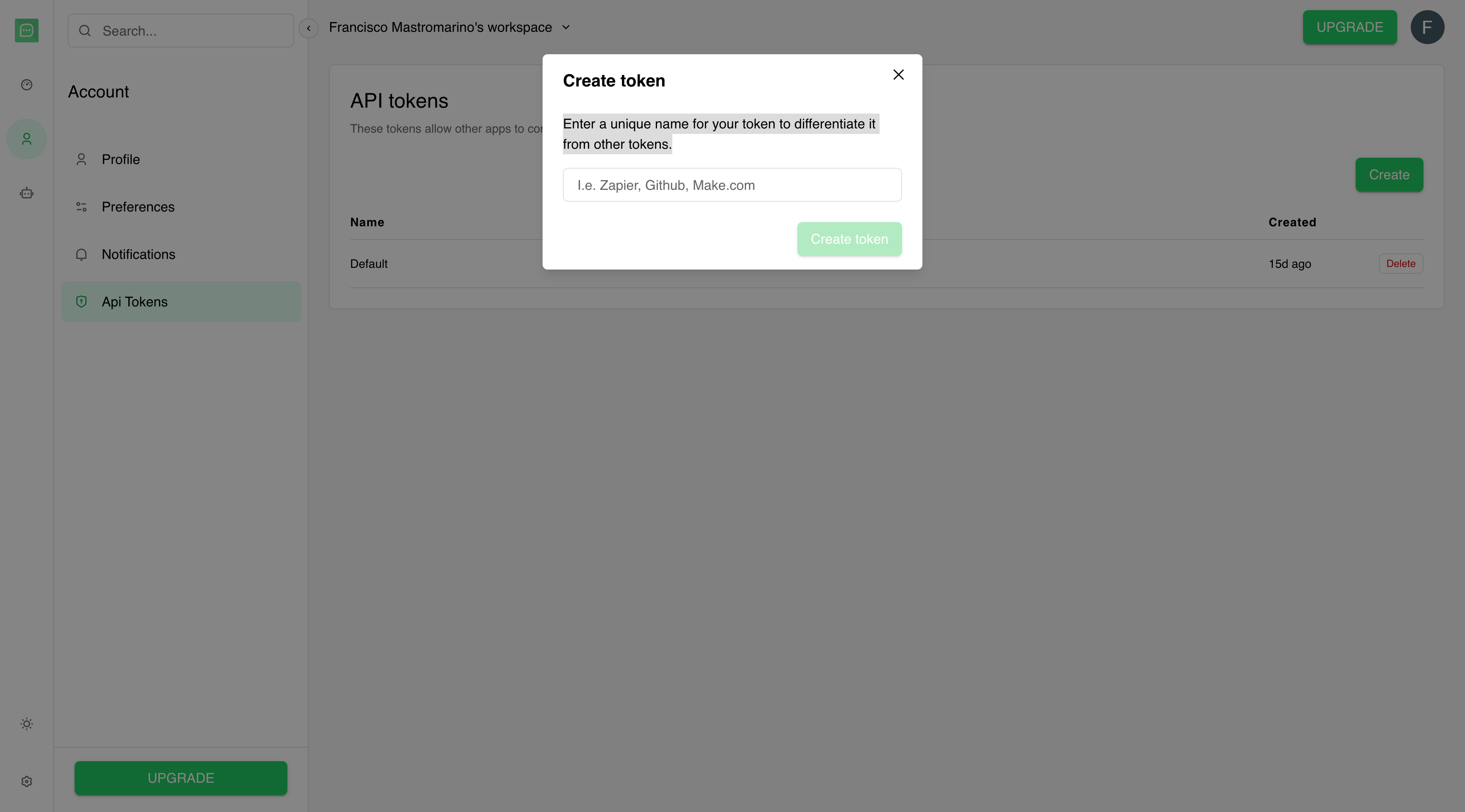
2. Click on Account > API Tokens
3. Under the "API tokens" section, click on "Create"
4. Give it a name, then click on "Create token"
5. Copy your token.
 ## Use your token
You can authenticate by adding an `Authorization` header to all your HTTP calls. The Authorization
header is formatted as such: `Authorization: Bearer ` (replace `` with your token
previously generated).
Example:
```sh theme={null}
curl -L -X GET 'https://app.quick.bot/api/v1/analytics/:botId/answers' \
-H 'Accept: application/json' \
-H 'Authorization: Bearer myAwesomeToken'
```
### How to find my `botId`
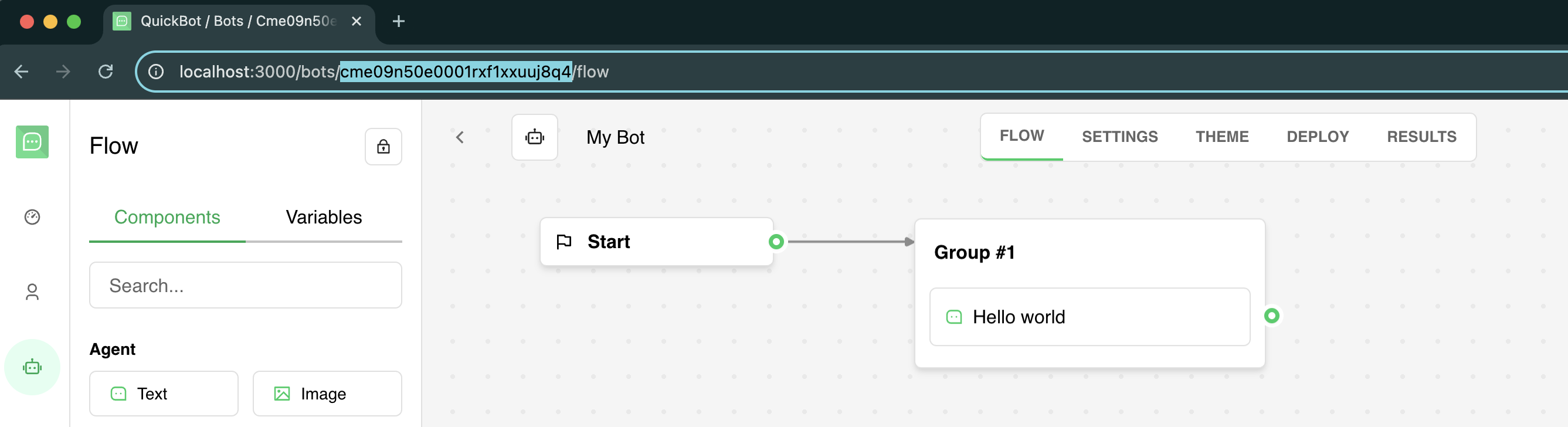
If you'd like to execute the bot in preview mode, you will need to provide the ID of the building
bot available in the editor URL:
## Use your token
You can authenticate by adding an `Authorization` header to all your HTTP calls. The Authorization
header is formatted as such: `Authorization: Bearer ` (replace `` with your token
previously generated).
Example:
```sh theme={null}
curl -L -X GET 'https://app.quick.bot/api/v1/analytics/:botId/answers' \
-H 'Accept: application/json' \
-H 'Authorization: Bearer myAwesomeToken'
```
### How to find my `botId`
If you'd like to execute the bot in preview mode, you will need to provide the ID of the building
bot available in the editor URL:
 ### How to find my `publicId`
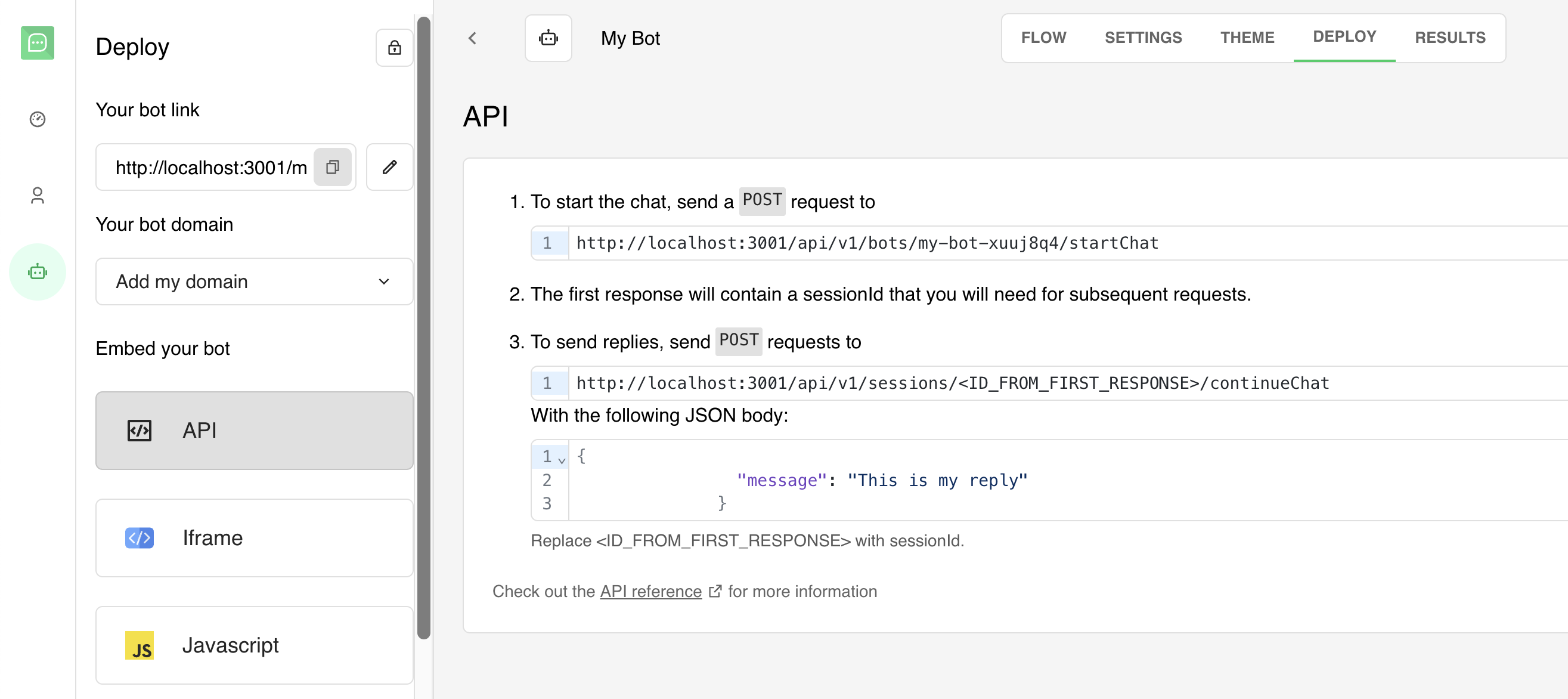
For published bot execution, you need to provide the public bot ID available here:
### How to find my `publicId`
For published bot execution, you need to provide the public bot ID available here:
 ### How to find my `workspaceId`
In your workspace dashboard, head over to `Workspace > Settings` and copy the workspace ID.
### How to find my `workspaceId`
In your workspace dashboard, head over to `Workspace > Settings` and copy the workspace ID.