> ## Documentation Index
> Fetch the complete documentation index at: https://docs.quick.bot/llms.txt
> Use this file to discover all available pages before exploring further.
# Inbox
In the **Inbox** section, you can view and manage all the messages sent to your bots. This is where
you can read user messages, respond to them, and manage conversations.
The inbox handle human handoff, allowing your team to take over conversations when needed. This is
especially useful for complex queries that require human intervention.
This is a paid feature available in the Pro plan and above.
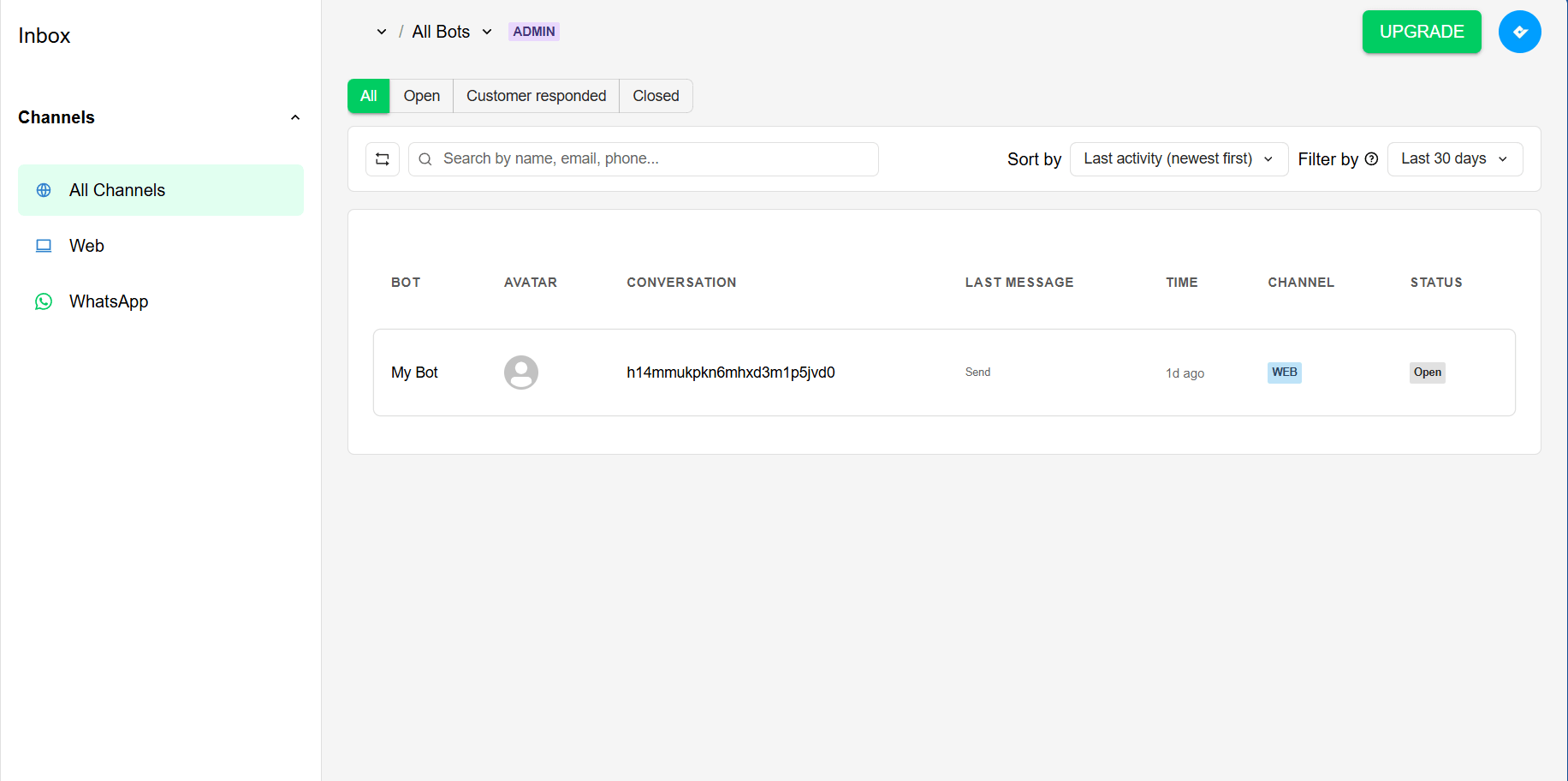 In the main table, you will an history of all messages sent to your bots with the following columns:
* **Bot**: the bot name.
* **Avatar**: The customer's avatar.
* **Conversation**: the conversation ID.
* **Last message**: The content of the last message in the conversation.
* **Time**: The timestamp of the last message.
* **Channel**: The channel through which the message was received (web or whatsapp).
* **Status**: The status of the conversation (customer response, open, closed).
You can search (name, email, phone), sort by newest/oldest (last activity or created) and filter by
time.
## Channels
The inbox currently supports two channels: web and WhatsApp. You can filter the conversations by channel using
the filter options.
## Viewing a conversation
Clicking on the row of a conversation will open the conversation view, where you can see the full
history of messages.
In the main table, you will an history of all messages sent to your bots with the following columns:
* **Bot**: the bot name.
* **Avatar**: The customer's avatar.
* **Conversation**: the conversation ID.
* **Last message**: The content of the last message in the conversation.
* **Time**: The timestamp of the last message.
* **Channel**: The channel through which the message was received (web or whatsapp).
* **Status**: The status of the conversation (customer response, open, closed).
You can search (name, email, phone), sort by newest/oldest (last activity or created) and filter by
time.
## Channels
The inbox currently supports two channels: web and WhatsApp. You can filter the conversations by channel using
the filter options.
## Viewing a conversation
Clicking on the row of a conversation will open the conversation view, where you can see the full
history of messages.
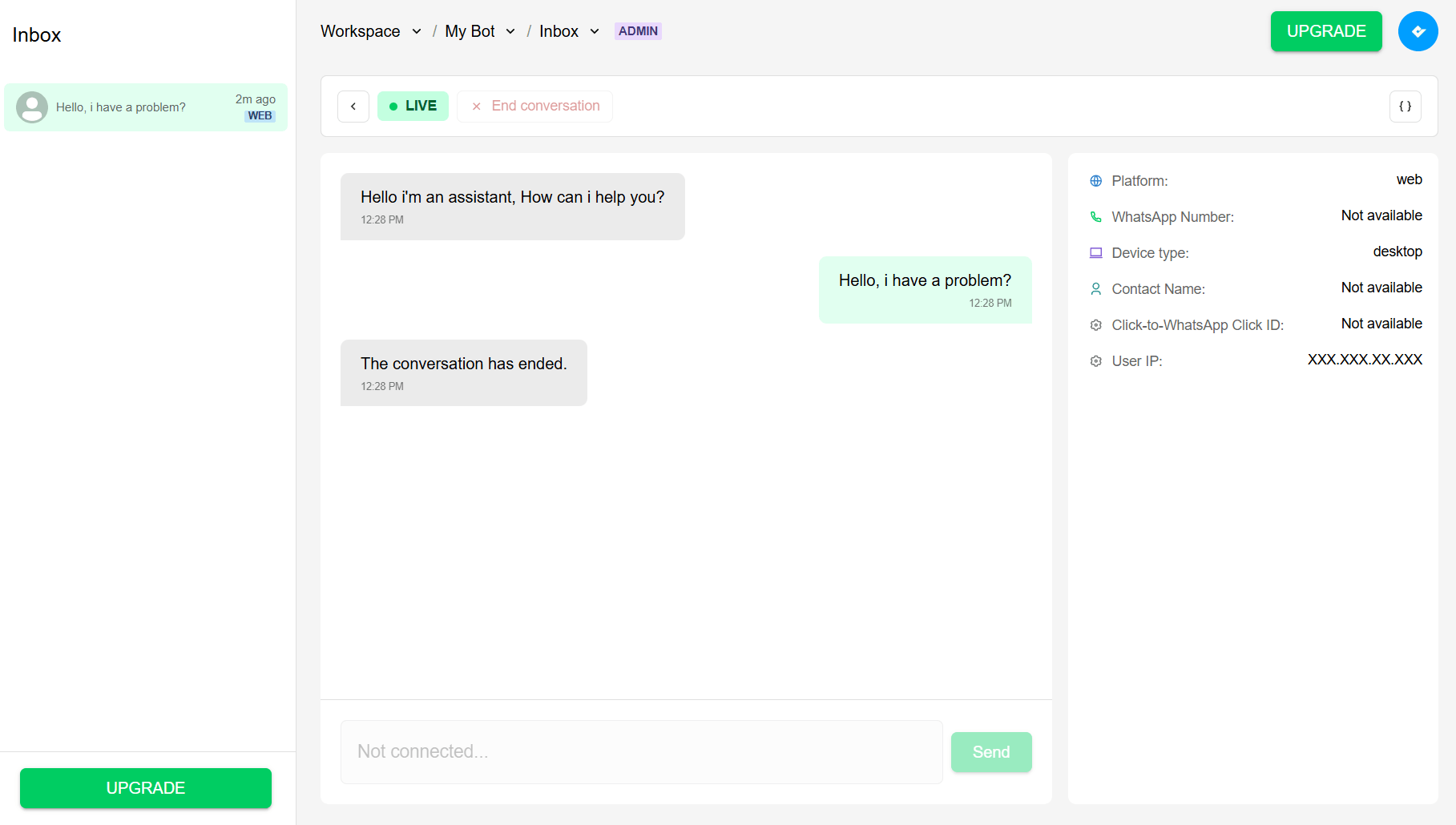 In the left panel you can see the list of conversations for quick access.
In the right panel you can see the conversation details:
* **Platform**: the platform through which the message was received (web or whatsapp).
* **Whatsapp number**: the phone number of the customer if it's provided (only for whatsapp
conversations).
* **Device type**: the type of device used by the customer (only for web conversations).
* **Contact Name**: the name of the customer if it's provided (only for Whatsapp conversations).
* **Click-to-WhatsApp Click ID**: the click ID of the customer if it's provided (only for whatsapp
conversations).
* **User IP**: the IP address of the customer if it's provided (only for web conversations).
Elevate your customer support with human handoff. Learn what this poweful feature offers and how to use it in your bots.
In the left panel you can see the list of conversations for quick access.
In the right panel you can see the conversation details:
* **Platform**: the platform through which the message was received (web or whatsapp).
* **Whatsapp number**: the phone number of the customer if it's provided (only for whatsapp
conversations).
* **Device type**: the type of device used by the customer (only for web conversations).
* **Contact Name**: the name of the customer if it's provided (only for Whatsapp conversations).
* **Click-to-WhatsApp Click ID**: the click ID of the customer if it's provided (only for whatsapp
conversations).
* **User IP**: the IP address of the customer if it's provided (only for web conversations).
Elevate your customer support with human handoff. Learn what this poweful feature offers and how to use it in your bots.