> ## Documentation Index
> Fetch the complete documentation index at: https://docs.quick.bot/llms.txt
> Use this file to discover all available pages before exploring further.
# Link and Domain
In the **Deploy** tab, you can find your bot's URL in the sidebar and the option to add a custom domain.
## Your Bot's URL
Here, you can customize the bot's ID. For example, if you set it to `my-awesome-bot`, your bot's URL
will become `https://viewer.dev.quick.bot/my-awesome-bot`.
## Custom Domain
If you have your own domain, you can use it as your bot's URL.
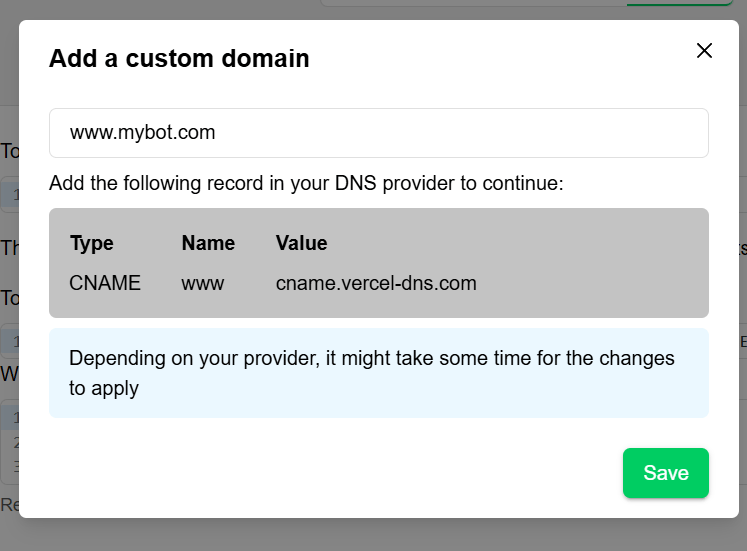
1. Click in **add my domain** and then **+ New Domain**.
2. Add your domain and copy the generated record.
3. In your DNS Provider paste the generated record for your domain.
 Publishing features may be restricted based on your plan:
* **Custom domains**: Paid plans only
* **Embed customization**: Advanced on higher tiers
* **WhatsApp integration**: Enterprise plans
Publishing features may be restricted based on your plan:
* **Custom domains**: Paid plans only
* **Embed customization**: Advanced on higher tiers
* **WhatsApp integration**: Enterprise plans