> ## Documentation Index
> Fetch the complete documentation index at: https://docs.quick.bot/llms.txt
> Use this file to discover all available pages before exploring further.
# WhatsApp
You can deploy your bot to **WhatsApp** using one of two methods. Choose the one that best fits your
needs. Once your number is connected, you can start chatting with your bot on WhatsApp immediately.
## Deploy via Meta Cloud API
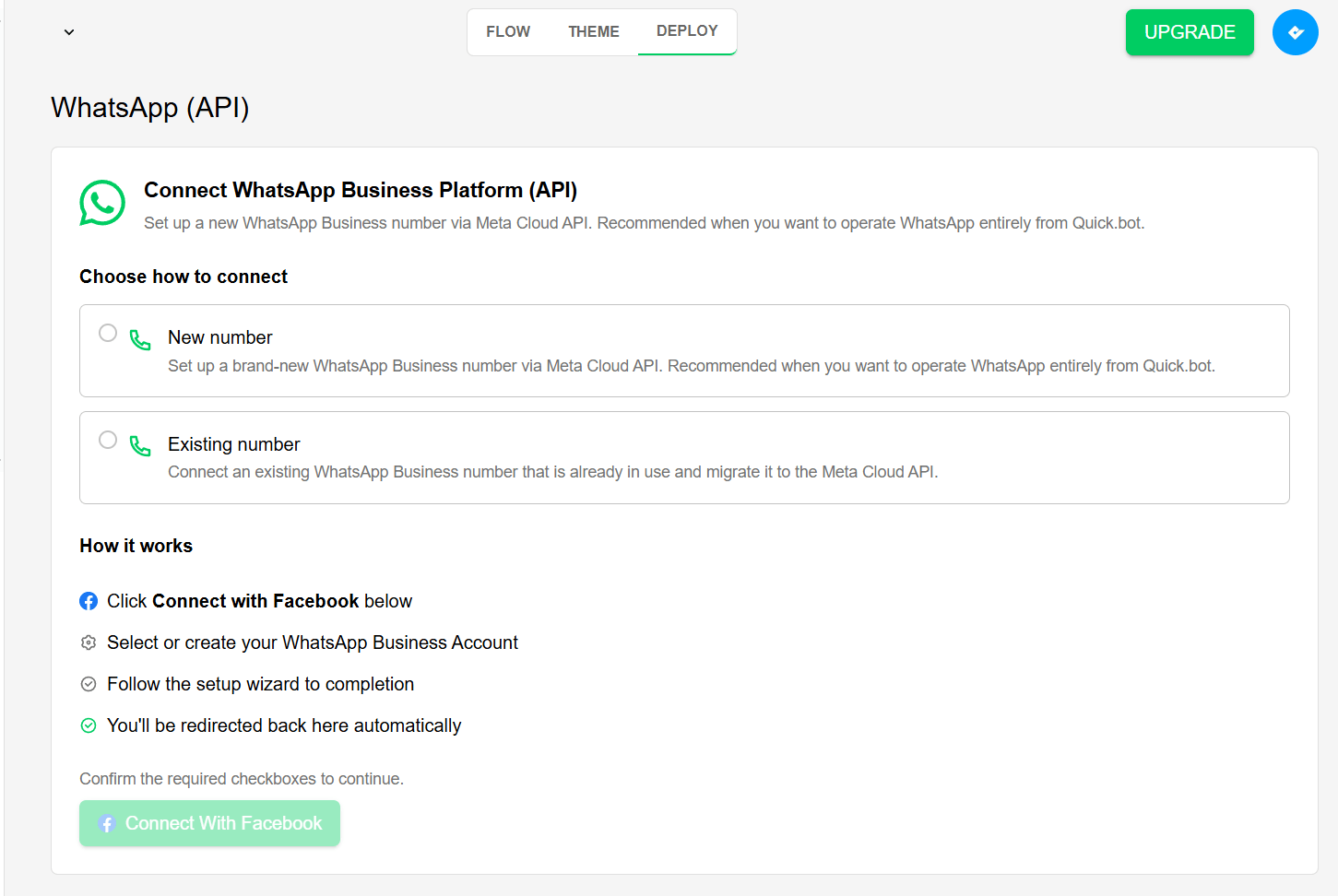 1. Go to your bot’s **Deploy** tab.
2. Click the **WhatsApp (API)**.
3. Choose between **New number** or **Existing number**.
* **New Number**: lets you set up a new WhatsApp Business account from scratch through Quick.bot.
* **Existing number**: use an existing WhatsApp Business number.
4. Accept all checkbox.
5. Click in **Connect with Facebook**.
6. Follows the instructions in facebook
7. After you finish the facebook authentication, you will be redirected back to the deploy page
8. Now your Bot is connected to your number.
***
## Deploy via QR
1. Go to your bot’s **Deploy** tab.
2. Click the **WhatsApp (API)**.
3. Choose between **New number** or **Existing number**.
* **New Number**: lets you set up a new WhatsApp Business account from scratch through Quick.bot.
* **Existing number**: use an existing WhatsApp Business number.
4. Accept all checkbox.
5. Click in **Connect with Facebook**.
6. Follows the instructions in facebook
7. After you finish the facebook authentication, you will be redirected back to the deploy page
8. Now your Bot is connected to your number.
***
## Deploy via QR
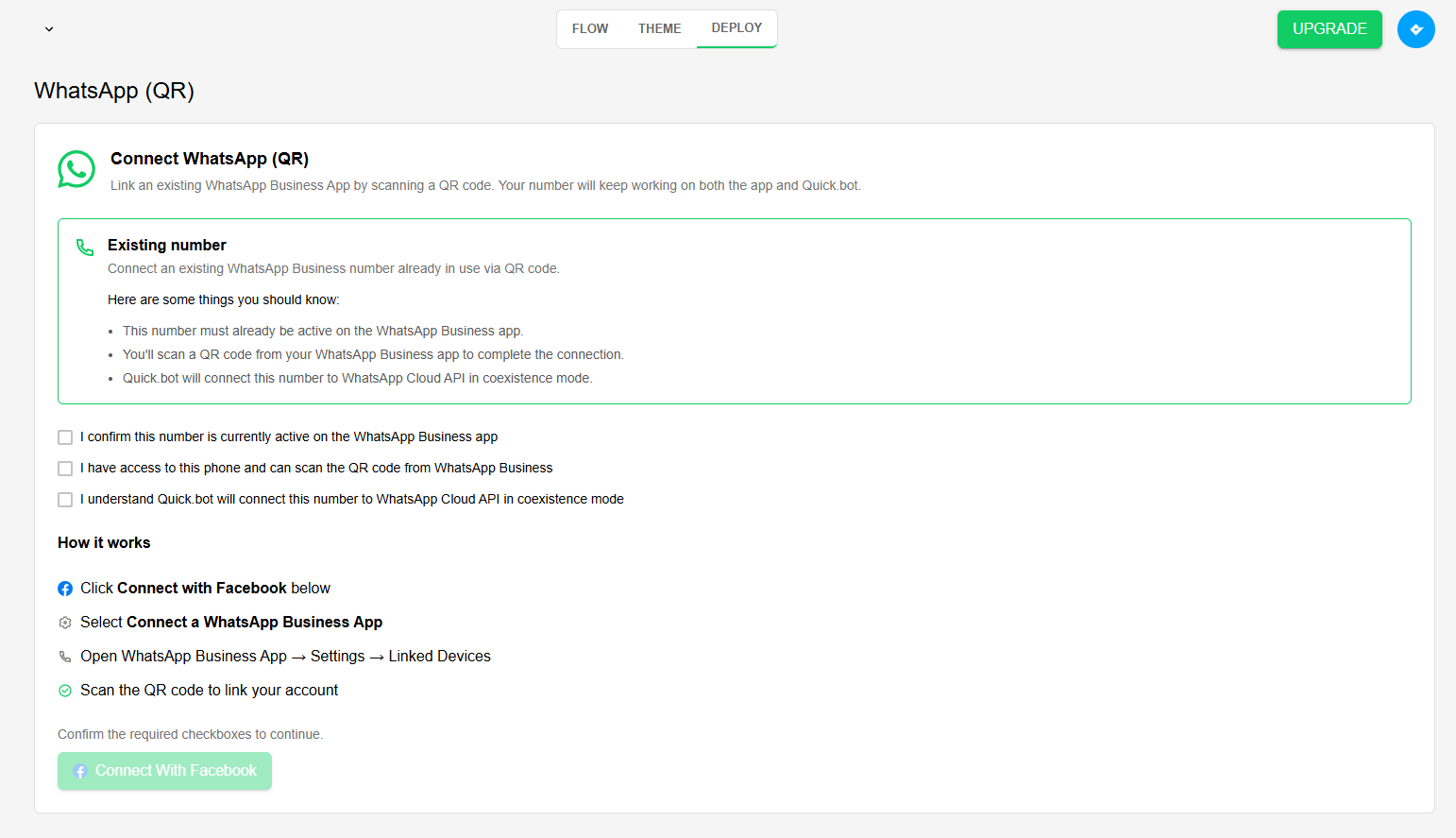 You need an existing business account to deploy via this method. If you don't have an existing
number, we recommend you to deploy via API.
1. Go to your bot’s **Deploy** tab.
2. Click the **WhatsApp (QR)**.
3. Accept all checkbox.
4. Click in **Connect with Facebook**.
5. Now in Facebook, select your businnes portfolio.
6. Select **Connect a WhastApp Business App**.
7. Enter your Phone number.
8. Scan the QR using the Whatsapp Business App:
* Open Whatsapp Business App (WA Business).
* Go to settings.
* Go to Linked Devices.
* Now you can scan the QR.
9. Follow the remaining instructions, then click **Finish**.
10. After you finish the facebook authentication, you will be redirected back to the deploy page.
11. Now your Bot is connected to your number.
## FAQ
You can integrate as many numbers as you need. QuickBot does not provide these numbers — you
must use your own Meta application.
{' '}
Yes. You’ll need to configure a **Start bot condition** for each bot so the correct one triggers
when a user starts a conversation.
{' '}
Integration uses the official **WhatsApp Business Platform** from Meta. Currently, the first
**1,000 service conversations per month** are free. More details:{' '}
Meta Pricing Documentation
.
This may be caused by a mismatch between the WhatsApp number shown in your WhatsApp profile
settings and the number entered in QuickBot. For example, in Brazil some users have two numbers:
one with 8 digits and another with 9. You must enter the exact number displayed in your WhatsApp
profile for the bot to work correctly.
You need an existing business account to deploy via this method. If you don't have an existing
number, we recommend you to deploy via API.
1. Go to your bot’s **Deploy** tab.
2. Click the **WhatsApp (QR)**.
3. Accept all checkbox.
4. Click in **Connect with Facebook**.
5. Now in Facebook, select your businnes portfolio.
6. Select **Connect a WhastApp Business App**.
7. Enter your Phone number.
8. Scan the QR using the Whatsapp Business App:
* Open Whatsapp Business App (WA Business).
* Go to settings.
* Go to Linked Devices.
* Now you can scan the QR.
9. Follow the remaining instructions, then click **Finish**.
10. After you finish the facebook authentication, you will be redirected back to the deploy page.
11. Now your Bot is connected to your number.
## FAQ
You can integrate as many numbers as you need. QuickBot does not provide these numbers — you
must use your own Meta application.
{' '}
Yes. You’ll need to configure a **Start bot condition** for each bot so the correct one triggers
when a user starts a conversation.
{' '}
Integration uses the official **WhatsApp Business Platform** from Meta. Currently, the first
**1,000 service conversations per month** are free. More details:{' '}
Meta Pricing Documentation
.
This may be caused by a mismatch between the WhatsApp number shown in your WhatsApp profile
settings and the number entered in QuickBot. For example, in Brazil some users have two numbers:
one with 8 digits and another with 9. You must enter the exact number displayed in your WhatsApp
profile for the bot to work correctly.