> ## Documentation Index
> Fetch the complete documentation index at: https://docs.quick.bot/llms.txt
> Use this file to discover all available pages before exploring further.

# Embed

export const YoutubeVideo = ({id}) => <div style={{
  position: 'relative',
  paddingBottom: '64.63195691202873%',
  height: 0
}}>
    <iframe src={`https://www.youtube.com/embed/${id}`} allowFullScreen style={{
  position: 'absolute',
  top: 0,
  left: 0,
  width: '100%',
  height: '100%',
  borderRadius: '8px'
}}></iframe>
  </div>;

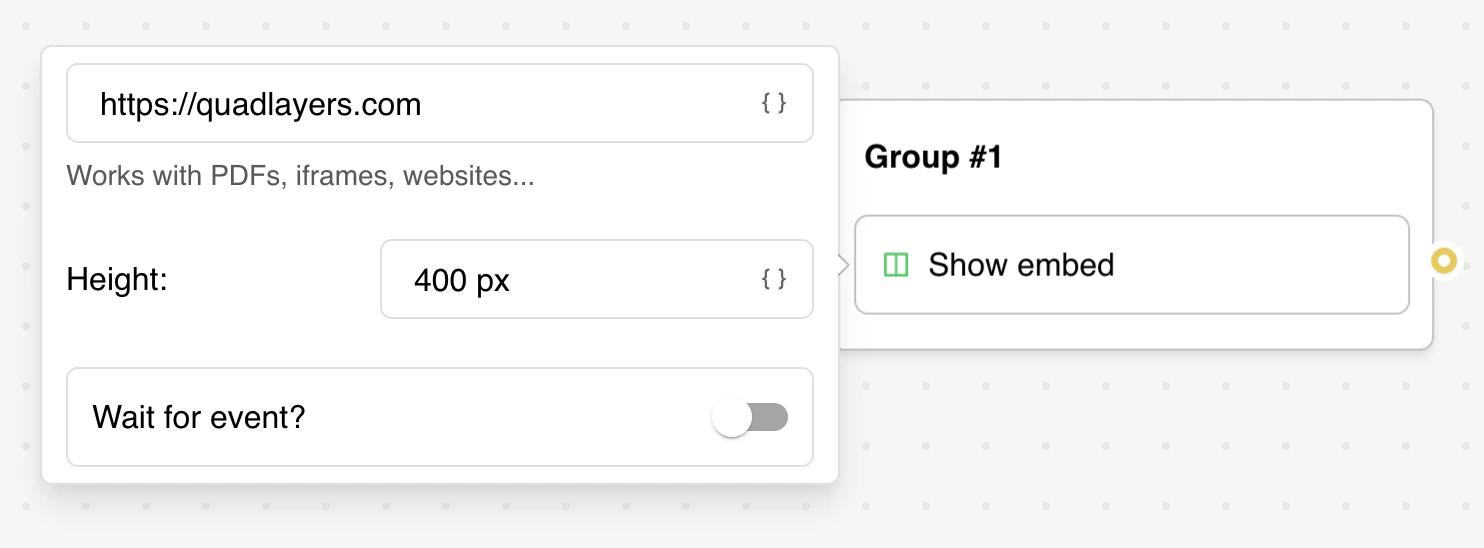
The Embed agent block allows you to display websites, iframe content, or multimedia from various
sources to your users.

<Warning>
  Not all websites allow embedding due to security policies (X-Frame-Options). If you see a blank
  space, it means the website you're trying to embed doesn't allow iframe embedding.
</Warning>

<Frame style={{ maxWidth: '400px' }}>
  <img src="https://mintcdn.com/urbiport-eca888d8/IABytB49wvquMLKH/images/builder/blocks/agent/embed.png?fit=max&auto=format&n=IABytB49wvquMLKH&q=85&s=8b9ac4aac2aab732ad0e3923cb4c10f8" alt="Embed bubble" className="rounded-lg" width="1484" height="548" data-path="images/builder/blocks/agent/embed.png" />
</Frame>

To use this block, paste any embeddable URL, an HTML `<iframe>` snippet, or a variable with an URL inside (http\:// or https\://).

## Settings

* **Height**: Configure the height of the embedded content in pixels. This can also be set using
  variables for dynamic sizing.

* **Wait for event?**: Enable this feature when you own the embedded website and want to control the
  bot flow based on events from the embedded content.
  * **Event Name**: Specify the name of the event to listen for.
  * **Save Data**: Choose a variable to store any data sent with the event.

**Event Implementation Example:**

```js theme={null}
window.parent.postMessage(
  {
    name: 'My event',
    data: 'Custom data passed to the bot variable',
  },
  '*',
)
```

The event name must match what you've configured in the Embed block settings.

<Frame style={{ maxWidth: '400px' }}>
  <img src="https://mintcdn.com/urbiport-eca888d8/IABytB49wvquMLKH/images/builder/blocks/agent/embed-wait.png?fit=max&auto=format&n=IABytB49wvquMLKH&q=85&s=65432d6f3c40ff49af3eb362499ae6dd" alt="Embed bubble wait for event configuration" className="rounded-lg" width="1510" height="810" data-path="images/builder/blocks/agent/embed-wait.png" />
</Frame>

### Embed a PDF hosted on Google Drive

1. Select the PDF file you want to embed
2. Right-click → Preview → More actions → Open in a new window
3. Click More actions → Embed item
4. Copy the embed code and paste it in the Embed agent block URL field