> ## Documentation Index
> Fetch the complete documentation index at: https://docs.quick.bot/llms.txt
> Use this file to discover all available pages before exploring further.
# Image
The Image block allows you to display images to your users.
 ## Options
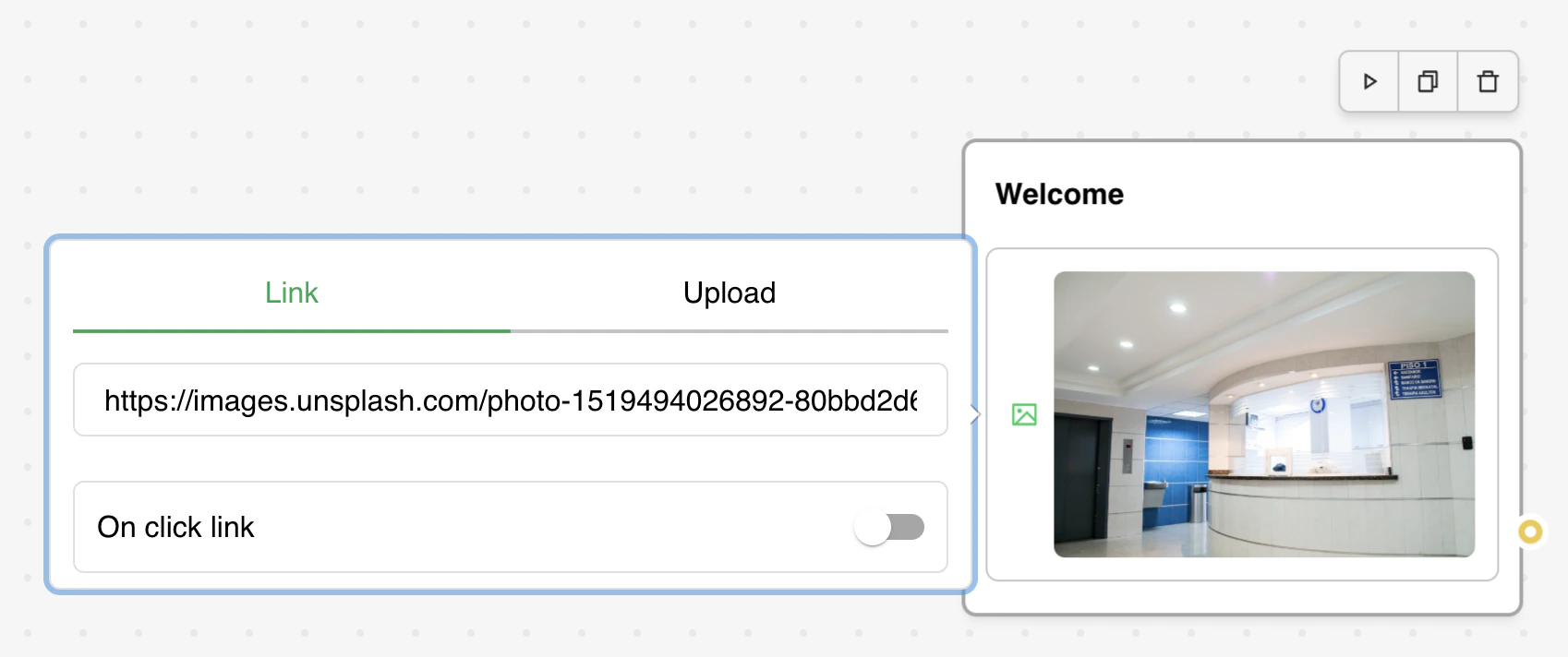
The Image block provides multiple ways to add visual content:
* **Upload**: Upload image files directly from your device (supports common formats: PNG, JPG, GIF,
etc.)
* **URL**: Paste a direct link to an image hosted elsewhere.
* **Variables**: Use variables that contain image URLs for dynamic content.
* **Giphy Integration**: Search and select GIFs directly from Giphy.
Also you can make images interactive by enabling the **On Click link** button
* **URL**: Define where users will be redirected when they click the image.
* **Alt Text**: Provide alternative text for accessibility and as a clickable label.
* **Variable Support**: Both URL and alt text fields support variables for dynamic content.
## Options
The Image block provides multiple ways to add visual content:
* **Upload**: Upload image files directly from your device (supports common formats: PNG, JPG, GIF,
etc.)
* **URL**: Paste a direct link to an image hosted elsewhere.
* **Variables**: Use variables that contain image URLs for dynamic content.
* **Giphy Integration**: Search and select GIFs directly from Giphy.
Also you can make images interactive by enabling the **On Click link** button
* **URL**: Define where users will be redirected when they click the image.
* **Alt Text**: Provide alternative text for accessibility and as a clickable label.
* **Variable Support**: Both URL and alt text fields support variables for dynamic content.