> ## Documentation Index
> Fetch the complete documentation index at: https://docs.quick.bot/llms.txt
> Use this file to discover all available pages before exploring further.
# Variable
export const YoutubeVideo = ({id}) =>
;
The Variable block allows you to create, modify, and manage variables throughout your bot
conversation, enabling dynamic content and sophisticated data handling.
## Configuration Options
### Variable Selection
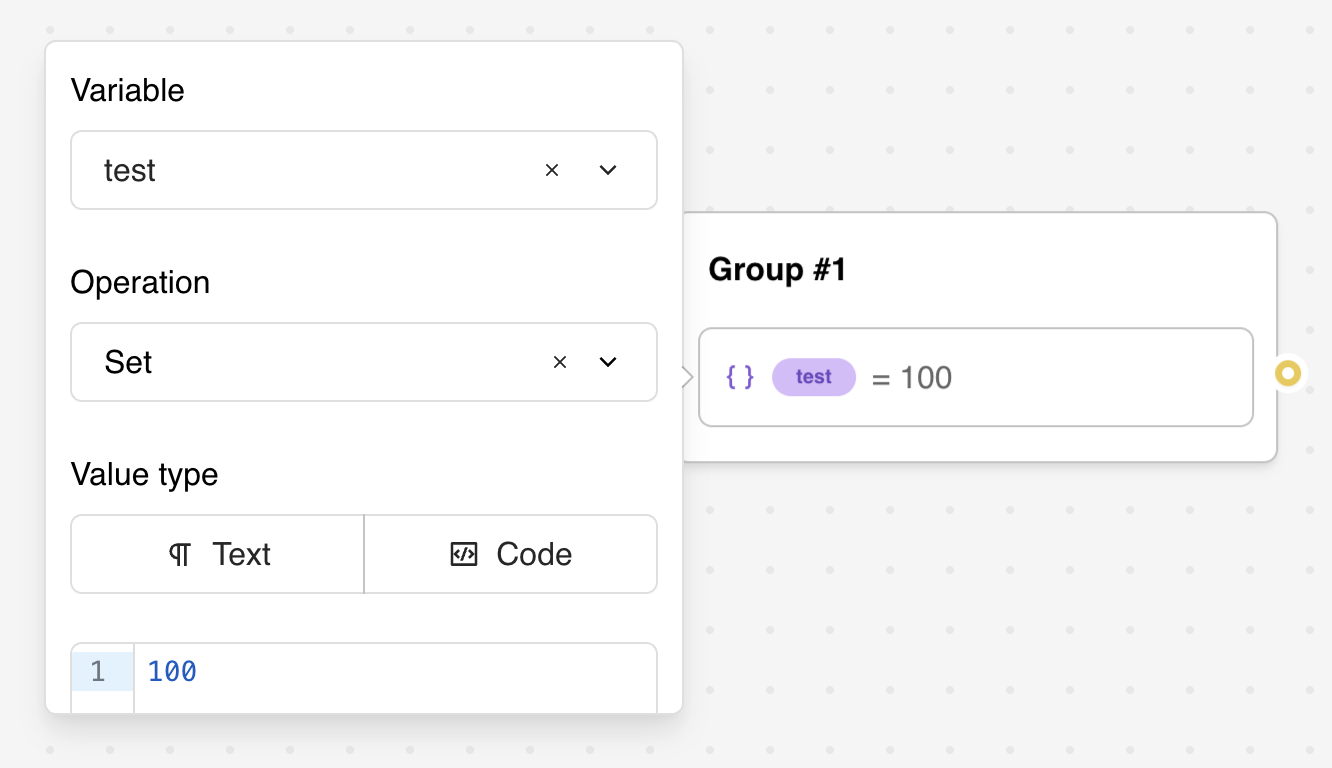
The first step is to select which variable you want to work with:
* **Variable Dropdown**: Choose from existing variables in your bot or create a new one
* **Automatic Creation**: New variables are created on-the-fly if they don't exist
* **System Variables Hidden**: System variables (like `{{system_now}}`) are not shown in the
dropdown for this block
### Operation Type
Choose the operation you want to perform on the variable:
* **Set**: Assign a value using text or JavaScript expressions
* **Empty**: Reset the variable to an undefined state
* **Append value(s)**: Add values to arrays (automatically converts to array if needed)
* **Pop**: Remove and optionally store the last item from an array
* **Shift**: Remove and optionally store the first item from an array
* **Map item with same index**: Cross-reference between two related arrays
### Operation-Specific Configuration
Depending on the selected operation type, additional configuration options appear:
#### For "Set" Operation:
* **Text/Code Mode Toggle**: Switch between simple text input and full JavaScript editor
* **Value Input**: Enter the value or expression to assign to the variable
#### For "Pop" and "Shift" Operations:
* **Store Item Variable**: Optional dropdown to select where to store the removed item
#### For "Append value(s)" Operation:
* **Value to Append**: Text input supporting variables to append to the array
#### For "Map item with same index" Operation:
* **Base Item Variable**: The item you're searching for
* **Base List Variable**: The array containing the base item
* **Target List Variable**: The array to retrieve the corresponding value from
#### For "Empty" Operation:
* No additional configuration needed
## Set
You can set your variable with any value with `Set`. It can be any kind of plain text but also
**Javascript code**.
### Expressions with existing variables
It means you can apply operations on existing variables.
Add a value to your variable:
```
{{Score}} + 5
```
Compute a sum of variables:
```
{{Score}} + {{Answer}}
```
Multiply variables together:
```
{{Score}} * {{Multiplier}}
```
Compute a percentage:
```
{{Score}} * 100 / {{Max Score}}
```
Extract the first name from a full name:
```
{{Full name}}.split(' ')[0]
```
Transform existing variable to upper case or lower case:
```
{{Name}}.toUpperCase()
```
```
{{Name}}.toLowerCase()
```
This can also be Javascript code. It will read the returned value of the code and set it to your
variable.
```js theme={null}
const name = 'John' + 'Doe'
return name
```
If you don't provide the `return` keyword then it will be automatically prepended to the beginning
of your code.
```js theme={null}
'John' + 'Doe'
```
is the same as
```js theme={null}
return 'John' + 'Doe'
```
### Text vs Code Mode
When using the **Set** operation, you can choose between two input modes using the toggle buttons:
#### Text Mode
* **Simple text input** with variable interpolation
* Best for straightforward expressions and string concatenation
* Variables are automatically parsed when enclosed in `{{}}` syntax
* Ideal for basic calculations and simple string operations
**Example:**
```
{{Score}} + 5
{{First Name}} {{Last Name}}
```
#### Code Mode
* **Full JavaScript editor** with syntax highlighting
* Best for complex logic and multi-line scripts
* Access to the complete JavaScript expression engine
* Supports advanced operations like loops, conditionals, and array methods
**Example:**
```js theme={null}
const total = {{Price}} * {{Quantity}}
const discount = {{User Type}} === 'premium' ? 0.15 : 0.05
return total * (1 - discount)
```
Variables in script are not parsed, they are evaluated. So it should be treated as if it were real Javascript variables.
So, if you write `"{{My variable}}"`, it will parse the variable ID (something like
`vclfqgqkdf000008mh3r6xakty`). You need to remove the double quotes to properly get the variable
content value.
For example,
* ❌ `"{{URL base}}/path"` => `vclfqgqkdf000008mh3r6xakty/path`
* ✅ `{{URL base}} + '/path'` => `https://my-site.com/path`
* ✅ `` `${{{URL base}}}/path` `` => `https://my-site.com/path`
Variables content can either be a string or a list of strings. Check out [Valid value
types](../../variables#valid-value-types) for more information.
## Empty
Resets your variable as if it was never initialized.
## Append value(s)
A conveniant value that automatically transform your variable into a list of strings. It will append
the value(s) to the list.
3 possible cases here:
* If the variable is empty, it will create a new array with the provided value(s)
* If the variable is not an array, it will create a new array with the existing value followed by
the provided value(s).
* If the variable is an array, it will concatenate the provided value(s) to the existing array.
This is useful to provide context to an AI block or to send it as a recap with the
[Email](../integrations/email) block.
## Pop
Remove and store the **last item** from an array. This operation:
* Removes the last element from the array stored in the selected variable
* Optionally stores the removed item in another variable for later use
* If the variable is not an array, it returns the value as-is
**Configuration:**
* Select a variable to store the removed item (optional)
**Example:**
```
Variable: {{Responses}} = ["First", "Second", "Third"]
After Pop → {{Responses}} = ["First", "Second"]
Removed item: "Third"
```
## Shift
Remove and store the **first item** from an array. This operation:
* Removes the first element from the array stored in the selected variable
* Optionally stores the removed item in another variable for later use
* If the variable is not an array, it returns the value as-is
**Configuration:**
* Select a variable to store the removed item (optional)
**Example:**
```
Variable: {{Queue}} = ["First", "Second", "Third"]
After Shift → {{Queue}} = ["Second", "Third"]
Removed item: "First"
```
## Map item with same index
This operation allows you to cross-reference between two related arrays by finding an item in one
array and retrieving the corresponding item at the same index from another array.
**Use Case:** When pulling data from external services, you often have two related lists - one with
human-readable labels displayed to users, and another with IDs used for API requests.
**Configuration:** The block requires three variable selections:
1. **Base Item Variable**: The specific item you're looking for (e.g., selected label)
2. **Base List Variable**: The array containing the base item (e.g., array of labels)
3. **Target List Variable**: The array to retrieve the corresponding item from (e.g., array of IDs)
**How it works:**
1. Find the index of the base item in the base list
2. Return the item at that same index from the target list
**Example:**
```
Labels = ["Basic Plan", "Pro Plan", "Enterprise"]
IDs = ["plan_001", "plan_002", "plan_003"]
Selected Label = "Pro Plan"
Result: "plan_002" (item at index 1 in both arrays)
```
## Advanced Features
### JavaScript Expression Engine
The Custom value type provides a full JavaScript expression engine:
```js theme={null}
// Mathematical calculations
{{Price}} * {{Quantity}} * (1 - {{Discount}} / 100)
// String manipulation
{{First Name}}.toUpperCase() + ' ' + {{Last Name}}.toLowerCase()
// Conditional expressions
{{Score}} > 80 ? 'Pass' : 'Fail'
// Date calculations
new Date({{Birthday}}).getFullYear()
// Array operations
[{{Answer1}}, {{Answer2}}, {{Answer3}}].filter(a => a.length > 0)
```
### Dynamic Array Management
Sophisticated array handling for complex data structures:
```js theme={null}
// Create arrays from user responses
Append Values: {{New Response}}
// Result: ["Response1", "Response2", "Response3"]
// Process survey responses
Pop from {{Responses}} → stores last response in new variable
Shift from {{Responses}} → stores first response in new variable
// Cross-reference arrays
Map Item: Find item in {{IDs}} at same index as {{Selection}} in {{Labels}}
```
### Context-Aware Variable Setting
Smart variable management based on conversation context:
* **Session Variables**: Temporary data that expires with the conversation
* **Persistent Variables**: Data saved to results table for long-term storage
* **Linked Variables**: Variables connected to user blocks for automatic updates
* **Computed Variables**: Variables that depend on other variables and update automatically
## Example Use Cases
### E-commerce Cart Management
```js theme={null}
// Calculate total price with tax and discount
const subtotal = {{Cart Items}}.reduce((sum, item) => sum + (item.price * item.quantity), 0)
const discount = {{User Type}} === 'premium' ? 0.15 : 0.05
const tax = subtotal * 0.08
return (subtotal * (1 - discount) + tax).toFixed(2)
```
### User Personalization
```js theme={null}
// Set personalized greeting based on time and user data
const hour = new Date().getHours()
const name = {{User Name}} || 'there'
const timeOfDay = hour < 12 ? 'morning' : hour < 17 ? 'afternoon' : 'evening'
return `Good ${timeOfDay}, ${name}!`
```
### Survey Response Processing
```js theme={null}
// Calculate satisfaction score from multiple responses
const responses = [{{Q1 Rating}}, {{Q2 Rating}}, {{Q3 Rating}}]
const validResponses = responses.filter(r => r !== null && r !== undefined)
const average = validResponses.reduce((sum, r) => sum + parseInt(r), 0) / validResponses.length
return Math.round(average * 10) / 10 // Round to 1 decimal
```
### Dynamic Content Selection
```js theme={null}
// Select content based on user profile
const segments = {
'new': 'Welcome! Here\'s what you need to know...',
'returning': 'Welcome back! Here\'s what\'s new...',
'premium': 'Welcome to your premium experience...'
}
return segments[{{User Segment}}] || segments['new']
```
## Troubleshooting
### Common Variable Issues
* **Undefined Variables**: Check that variables are created before use
* **Type Conflicts**: Ensure consistent data types (string vs number vs array)
* **Scope Problems**: Verify variables are accessible in their usage context
* **Naming Conflicts**: Avoid duplicate variable names that could cause confusion
### JavaScript Expression Errors
* **Syntax Errors**: Validate JavaScript syntax before deployment
* **Variable References**: Use `{{Variable Name}}` syntax correctly
* **Return Statements**: Remember that expressions auto-prepend `return` if not present
* **Null Handling**: Check for null/undefined values before operations
### Array Operation Problems
* **Empty Arrays**: Handle cases where arrays might be empty
* **Index Errors**: Verify array indices exist before accessing
* **Type Mixing**: Ensure array elements are compatible types
* **Memory Usage**: Be mindful of large arrays in browser memory
### Integration Challenges
* **External APIs**: Handle API failures and timeout scenarios gracefully
* **Data Format**: Ensure data formats match expected patterns
* **Session Management**: Handle session expiration and variable persistence
* **Cross-platform**: Test variable behavior across web and WhatsApp environments
 ## Configuration Options
### Variable Selection
The first step is to select which variable you want to work with:
* **Variable Dropdown**: Choose from existing variables in your bot or create a new one
* **Automatic Creation**: New variables are created on-the-fly if they don't exist
* **System Variables Hidden**: System variables (like `{{system_now}}`) are not shown in the
dropdown for this block
### Operation Type
Choose the operation you want to perform on the variable:
* **Set**: Assign a value using text or JavaScript expressions
* **Empty**: Reset the variable to an undefined state
* **Append value(s)**: Add values to arrays (automatically converts to array if needed)
* **Pop**: Remove and optionally store the last item from an array
* **Shift**: Remove and optionally store the first item from an array
* **Map item with same index**: Cross-reference between two related arrays
### Operation-Specific Configuration
Depending on the selected operation type, additional configuration options appear:
#### For "Set" Operation:
* **Text/Code Mode Toggle**: Switch between simple text input and full JavaScript editor
* **Value Input**: Enter the value or expression to assign to the variable
#### For "Pop" and "Shift" Operations:
* **Store Item Variable**: Optional dropdown to select where to store the removed item
#### For "Append value(s)" Operation:
* **Value to Append**: Text input supporting variables to append to the array
#### For "Map item with same index" Operation:
* **Base Item Variable**: The item you're searching for
* **Base List Variable**: The array containing the base item
* **Target List Variable**: The array to retrieve the corresponding value from
#### For "Empty" Operation:
* No additional configuration needed
## Set
You can set your variable with any value with `Set`. It can be any kind of plain text but also
**Javascript code**.
### Expressions with existing variables
It means you can apply operations on existing variables.
Add a value to your variable:
```
{{Score}} + 5
```
Compute a sum of variables:
```
{{Score}} + {{Answer}}
```
Multiply variables together:
```
{{Score}} * {{Multiplier}}
```
Compute a percentage:
```
{{Score}} * 100 / {{Max Score}}
```
Extract the first name from a full name:
```
{{Full name}}.split(' ')[0]
```
Transform existing variable to upper case or lower case:
```
{{Name}}.toUpperCase()
```
```
{{Name}}.toLowerCase()
```
This can also be Javascript code. It will read the returned value of the code and set it to your
variable.
```js theme={null}
const name = 'John' + 'Doe'
return name
```
If you don't provide the `return` keyword then it will be automatically prepended to the beginning
of your code.
```js theme={null}
'John' + 'Doe'
```
is the same as
```js theme={null}
return 'John' + 'Doe'
```
### Text vs Code Mode
When using the **Set** operation, you can choose between two input modes using the toggle buttons:
#### Text Mode
* **Simple text input** with variable interpolation
* Best for straightforward expressions and string concatenation
* Variables are automatically parsed when enclosed in `{{}}` syntax
* Ideal for basic calculations and simple string operations
**Example:**
```
{{Score}} + 5
{{First Name}} {{Last Name}}
```
#### Code Mode
* **Full JavaScript editor** with syntax highlighting
* Best for complex logic and multi-line scripts
* Access to the complete JavaScript expression engine
* Supports advanced operations like loops, conditionals, and array methods
**Example:**
```js theme={null}
const total = {{Price}} * {{Quantity}}
const discount = {{User Type}} === 'premium' ? 0.15 : 0.05
return total * (1 - discount)
```
## Configuration Options
### Variable Selection
The first step is to select which variable you want to work with:
* **Variable Dropdown**: Choose from existing variables in your bot or create a new one
* **Automatic Creation**: New variables are created on-the-fly if they don't exist
* **System Variables Hidden**: System variables (like `{{system_now}}`) are not shown in the
dropdown for this block
### Operation Type
Choose the operation you want to perform on the variable:
* **Set**: Assign a value using text or JavaScript expressions
* **Empty**: Reset the variable to an undefined state
* **Append value(s)**: Add values to arrays (automatically converts to array if needed)
* **Pop**: Remove and optionally store the last item from an array
* **Shift**: Remove and optionally store the first item from an array
* **Map item with same index**: Cross-reference between two related arrays
### Operation-Specific Configuration
Depending on the selected operation type, additional configuration options appear:
#### For "Set" Operation:
* **Text/Code Mode Toggle**: Switch between simple text input and full JavaScript editor
* **Value Input**: Enter the value or expression to assign to the variable
#### For "Pop" and "Shift" Operations:
* **Store Item Variable**: Optional dropdown to select where to store the removed item
#### For "Append value(s)" Operation:
* **Value to Append**: Text input supporting variables to append to the array
#### For "Map item with same index" Operation:
* **Base Item Variable**: The item you're searching for
* **Base List Variable**: The array containing the base item
* **Target List Variable**: The array to retrieve the corresponding value from
#### For "Empty" Operation:
* No additional configuration needed
## Set
You can set your variable with any value with `Set`. It can be any kind of plain text but also
**Javascript code**.
### Expressions with existing variables
It means you can apply operations on existing variables.
Add a value to your variable:
```
{{Score}} + 5
```
Compute a sum of variables:
```
{{Score}} + {{Answer}}
```
Multiply variables together:
```
{{Score}} * {{Multiplier}}
```
Compute a percentage:
```
{{Score}} * 100 / {{Max Score}}
```
Extract the first name from a full name:
```
{{Full name}}.split(' ')[0]
```
Transform existing variable to upper case or lower case:
```
{{Name}}.toUpperCase()
```
```
{{Name}}.toLowerCase()
```
This can also be Javascript code. It will read the returned value of the code and set it to your
variable.
```js theme={null}
const name = 'John' + 'Doe'
return name
```
If you don't provide the `return` keyword then it will be automatically prepended to the beginning
of your code.
```js theme={null}
'John' + 'Doe'
```
is the same as
```js theme={null}
return 'John' + 'Doe'
```
### Text vs Code Mode
When using the **Set** operation, you can choose between two input modes using the toggle buttons:
#### Text Mode
* **Simple text input** with variable interpolation
* Best for straightforward expressions and string concatenation
* Variables are automatically parsed when enclosed in `{{}}` syntax
* Ideal for basic calculations and simple string operations
**Example:**
```
{{Score}} + 5
{{First Name}} {{Last Name}}
```
#### Code Mode
* **Full JavaScript editor** with syntax highlighting
* Best for complex logic and multi-line scripts
* Access to the complete JavaScript expression engine
* Supports advanced operations like loops, conditionals, and array methods
**Example:**
```js theme={null}
const total = {{Price}} * {{Quantity}}
const discount = {{User Type}} === 'premium' ? 0.15 : 0.05
return total * (1 - discount)
```