> ## Documentation Index
> Fetch the complete documentation index at: https://docs.quick.bot/llms.txt
> Use this file to discover all available pages before exploring further.
# Buttons
export const YoutubeVideo = ({id}) =>
;
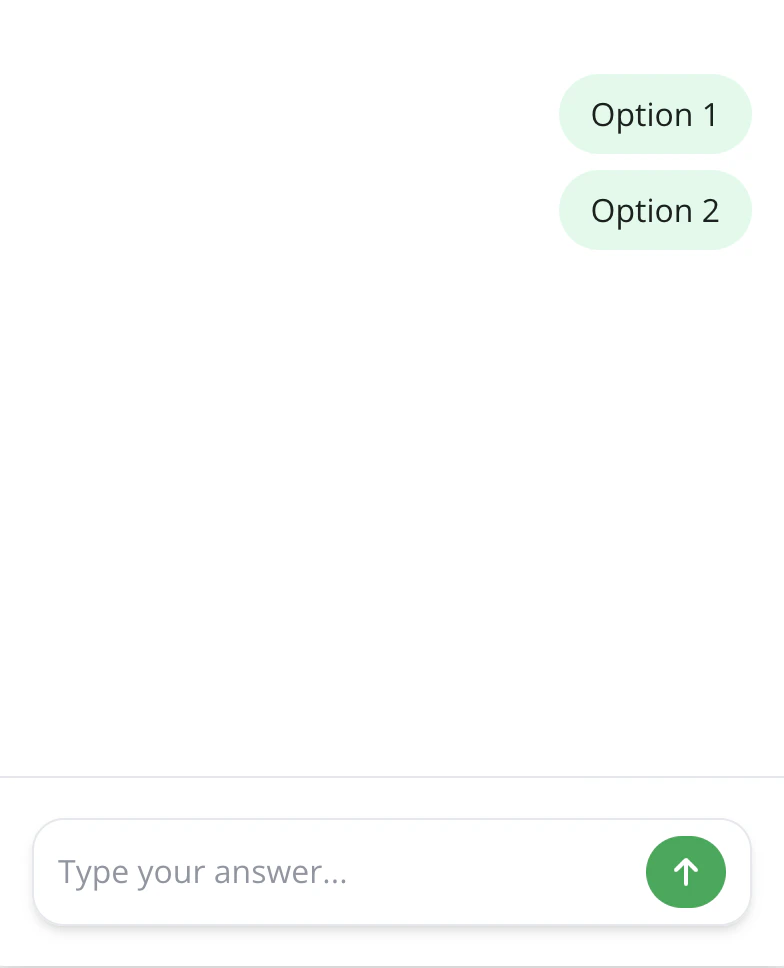
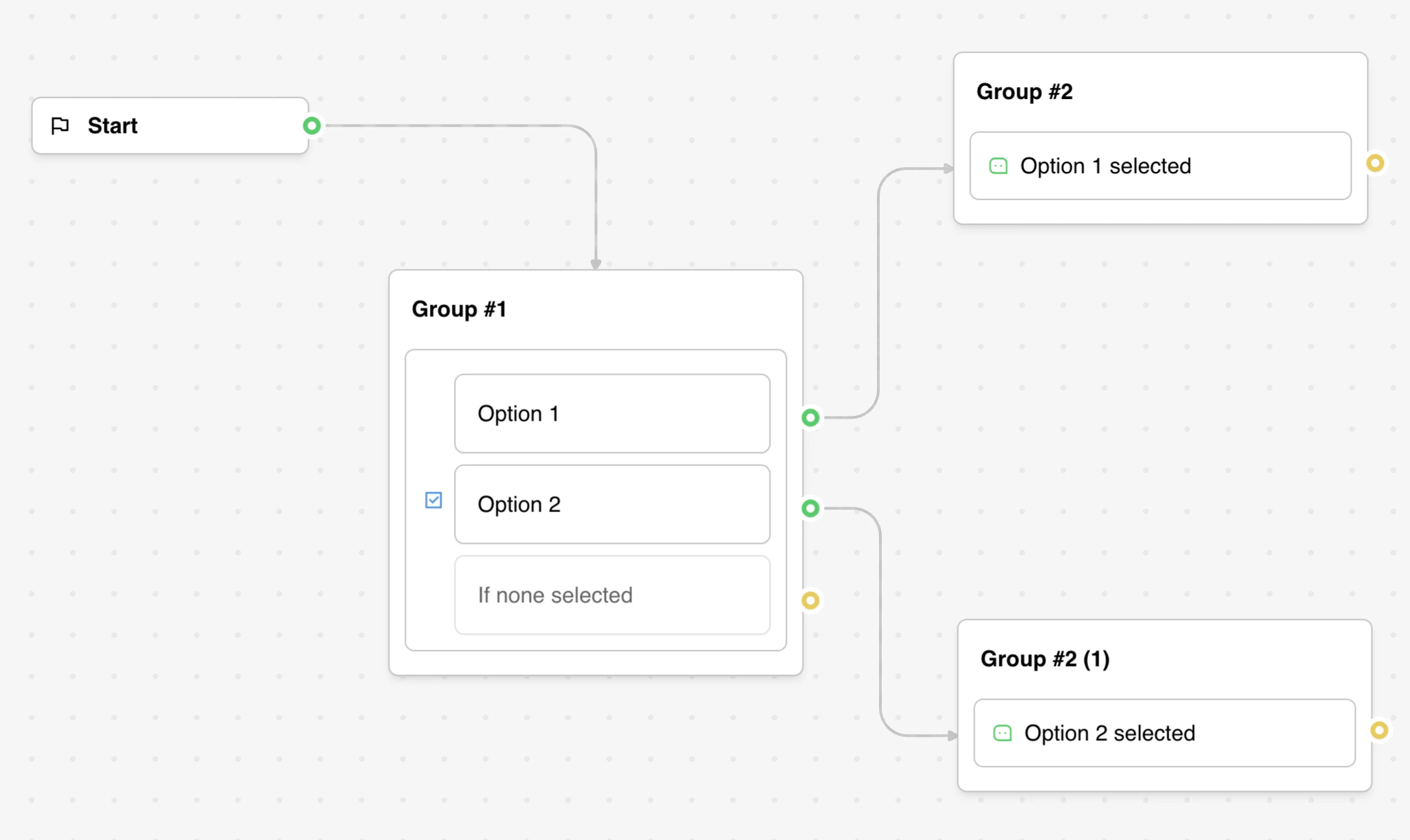
The Buttons user block allows you to offer your user predefined choices, either single choice
options or multiple choices. It's one of the most versatile user blocks, supporting static items,
dynamic content, and various configuration options.
## Configuration
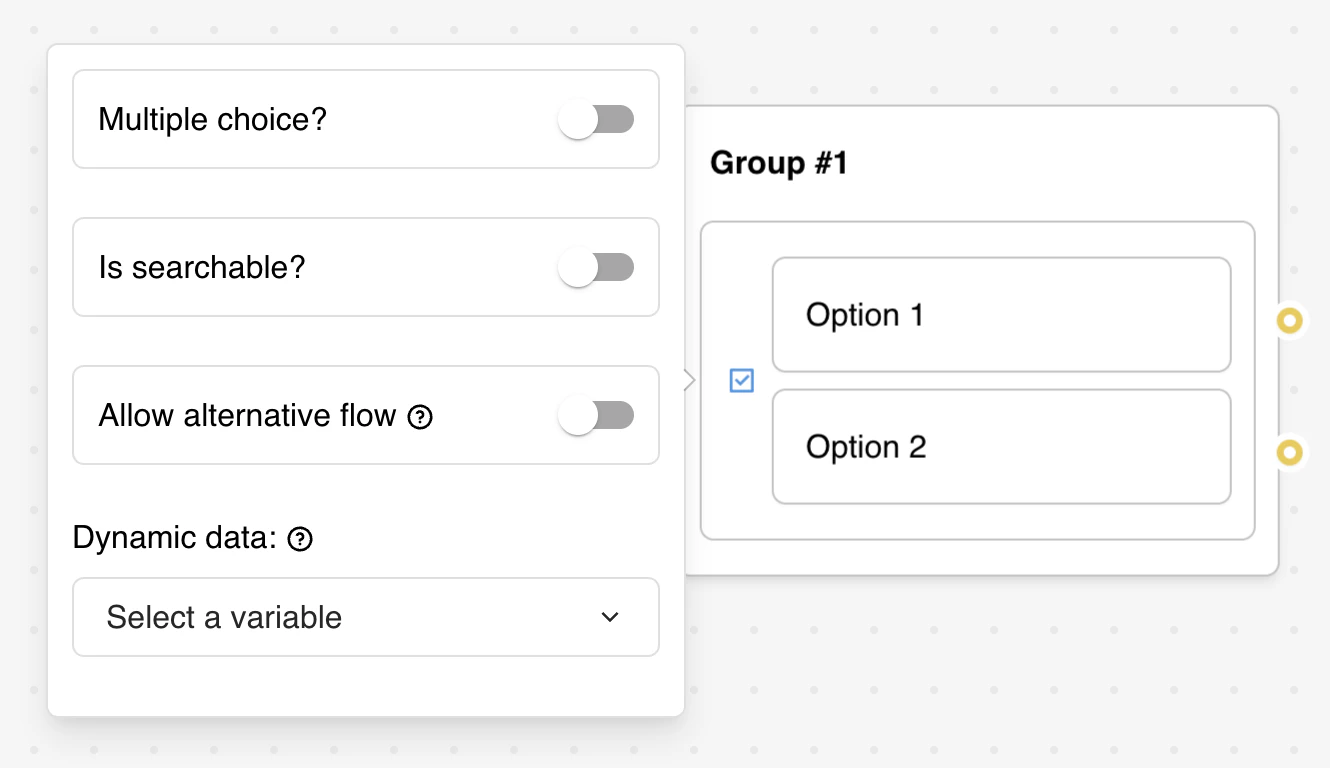
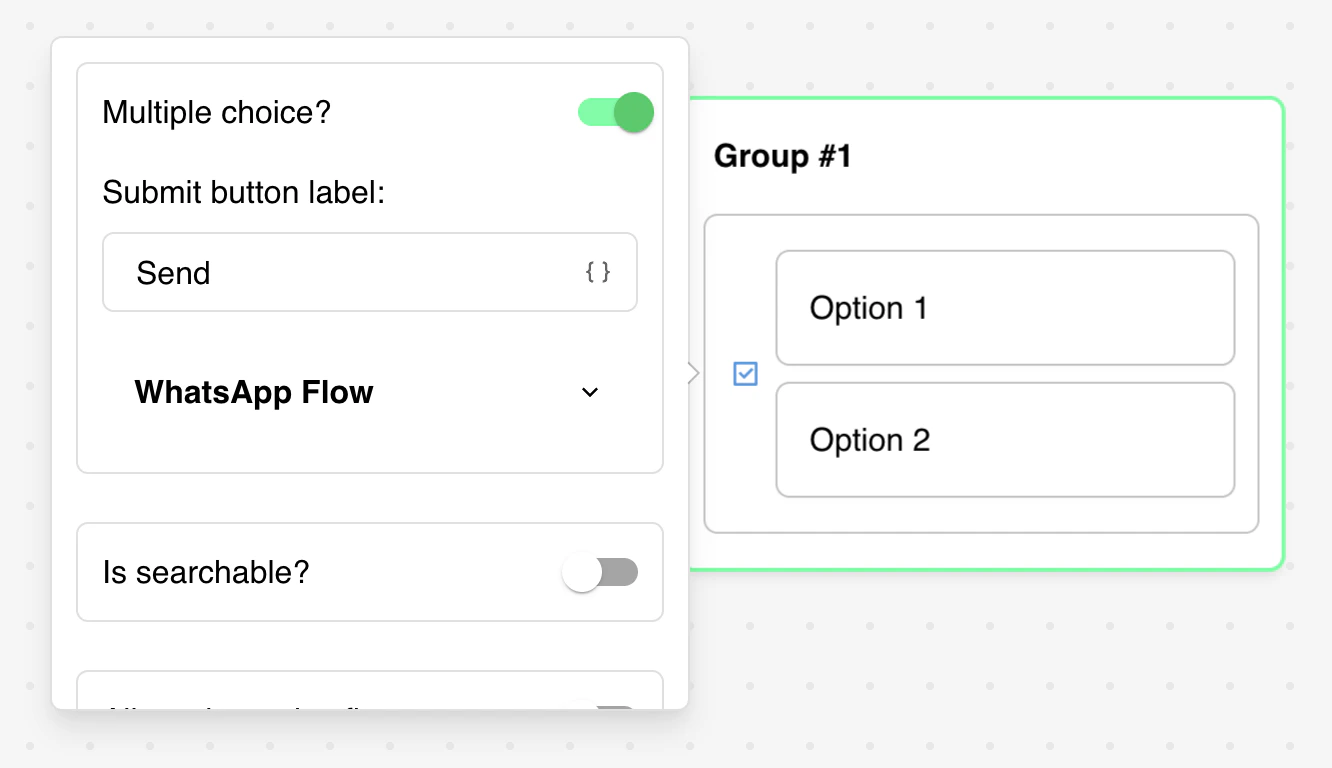
* **Submit Button**: Customize the text shown on the submit button (only for multiple choice)
* **Save Answer**: Choose a variable to store the user's selection(s)
### Multiple Choice
Enable multiple choice selection to allow users to select more than one option. When enabled:
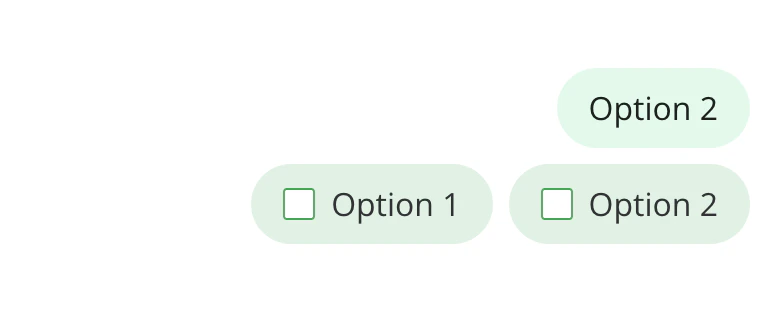
* Users can select multiple buttons before submitting
* A custom submit button appears with configurable text
* Selected answers are joined with commas in the saved variable
### Add Search input
Enable search functionality to help users filter through many options:
* Adds a search input field above the buttons
* Allows users to type and filter available choices
* **Search Placeholder**: Set placeholder text for the search input field
### Image support
Upload custom images for each choice option:
* **Label**: Add a label to each picture choice (supports variables)
* **Value**: Add a value to each picture choice (supports variables), if it's empty it take the label as value.
* **Display Conditions**: Show/hide specific options based on variable conditions.
### Dynamic data
Instead of adding items manually, you can also display a dynamic list of items based on a variable.
This is useful when you want to display a list of items from another data source. For this to work,
you first need to make sure the variable you are using contains a list of values. This list can be
extracted from an integration block like Google Sheets.
### Allow alternative flow
Enable the "Allow alternative flow" option when you want to give users the flexibility to provide
their own response instead of selecting from predefined choices.
**How it works:**
* Adds an additional flow path that activates when the user wants to provide a custom answer
* Perfect for scenarios where predefined options might not cover all cases
* Typically connected to a "Text" user block to capture the user's custom input
* Replaces the need for manual "Other" buttons in your flow
**Use cases:**
* Product preference forms where users might have unique requirements
* Feedback collection when predefined options may not capture all responses
* Search-like functionality where users can specify exactly what they need
### Integration Considerations
* When using with webhooks, parse comma-separated values for multiple choices
* Dynamic button data should be formatted as an array of strings
* Variable updates from other blocks may affect dynamic button display
 ### Integration Considerations
* When using with webhooks, parse comma-separated values for multiple choices
* Dynamic button data should be formatted as an array of strings
* Variable updates from other blocks may affect dynamic button display
### Integration Considerations
* When using with webhooks, parse comma-separated values for multiple choices
* Dynamic button data should be formatted as an array of strings
* Variable updates from other blocks may affect dynamic button display