> ## Documentation Index
> Fetch the complete documentation index at: https://docs.quick.bot/llms.txt
> Use this file to discover all available pages before exploring further.
# File upload
The File upload user block allows you to collect files from your user. It supports single and
multiple file uploads with customizable visibility settings and comprehensive labeling options.
## Configuration Options
### File Upload Settings
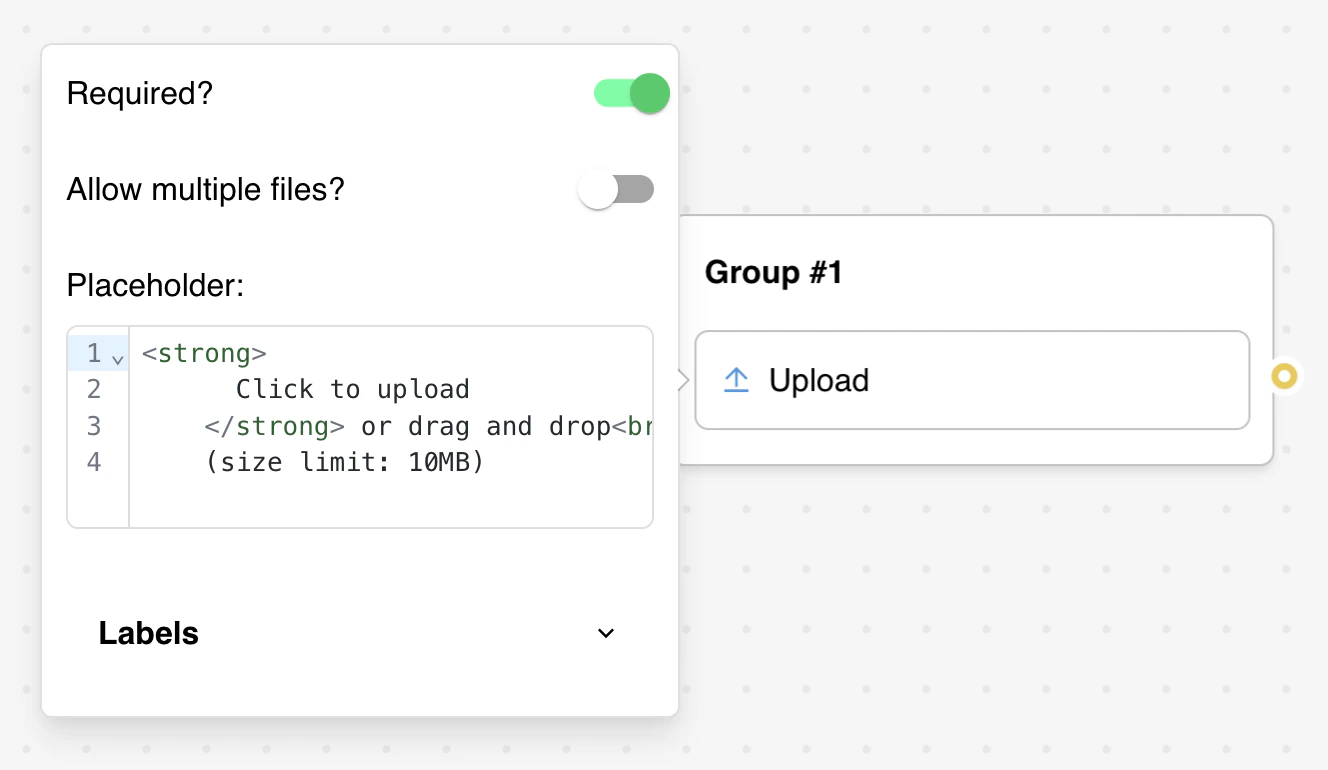
* **Required**: Make file upload mandatory or optional for form completion
* **Allow Multiple Files**: Enable users to upload multiple files in a single interaction
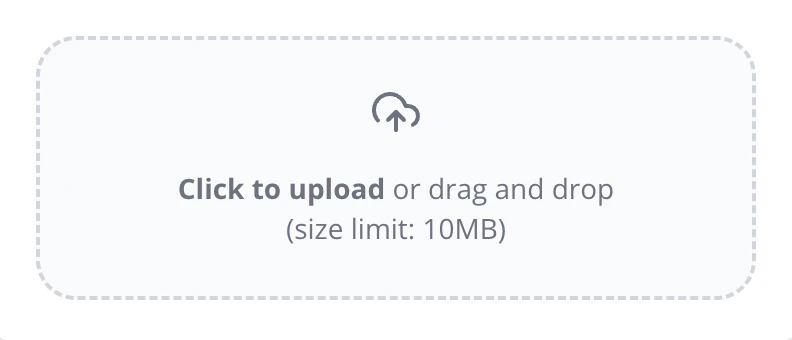
* **Placeholder**: Custom HTML-enabled content displayed in the upload area
* **Visibility**: Control whether uploaded files are publicly accessible or private
### Custom Labels
Comprehensive labeling system with context-aware options:
* **Button Label**: Text for the submit/upload button
* **Clear Label**: Text for clearing selected files (multiple files only)
* **Skip Label**: Text for skipping upload (when not required)
* **Success Labels**: Different messages for single vs. multiple file uploads
### Variable Integration
* **Save Upload**: Choose a variable to store file URLs or file information
* Variable content adapts based on single vs. multiple file configuration
 ## HTML Placeholder Support
The placeholder field accepts [HTML](https://en.wikipedia.org/wiki/HTML) for rich formatting:
* Use HTML tags to style instructions
* Include images or icons in upload areas
* Create visually appealing upload prompts
* Support for basic HTML elements and styling
### HTML Examples
```html theme={null}
Upload your resume!
## HTML Placeholder Support
The placeholder field accepts [HTML](https://en.wikipedia.org/wiki/HTML) for rich formatting:
* Use HTML tags to style instructions
* Include images or icons in upload areas
* Create visually appealing upload prompts
* Support for basic HTML elements and styling
### HTML Examples
```html theme={null}
Upload your resume!
Accepted formats: PDF, DOC, DOCX
📎 Drop files here or click to browse
```
## File Size and Type Limitations
### Size Limit
There is a 10MB fixed limit per uploaded file. For larger files:
* Direct users to cloud storage services (Google Drive, Dropbox, OneDrive)
* Request shareable links instead of direct uploads
* Consider breaking large files into smaller parts
* Implement file compression recommendations
### File Type Handling
The block accepts all file types by default:
* Images: JPG, PNG, GIF, SVG, WebP
* Documents: PDF, DOC, DOCX, TXT, RTF
* Archives: ZIP, RAR, 7Z
* Media: MP4, MP3, AVI, WAV
* Data: CSV, XLS, XLSX, JSON
## Visibility Options
### Public vs. Private Files
Choose how uploaded files are accessible:
**Public Files:**
* Generate publicly accessible URLs
* Anyone with the link can view files
* Compatible with external services and integrations
* Suitable for sharing and embedding
**Private Files:**
* Restricted to workspace members only
* Require authentication to access
* Cannot be used with external services
* Enhanced security for sensitive documents
**Auto Mode (Default):**
* Public for web-based uploads
* Private for WhatsApp and other messaging platforms
* Platform-optimized visibility settings
### Integration Impact
**Public files** enable:
* Email attachments via Email block
* Integration with external APIs
* Direct linking in webhooks
* Embedding in external websites
**Private files** restrict:
* External service access
* Direct URL sharing
* Third-party integrations
* Public embedding capabilities
## Multiple File Upload
### Configuration Options
When multiple file upload is enabled:
* Users can select several files at once
* Clear button allows removing all selected files
* Success message includes total count using `{total}` placeholder
* Variable stores array of file URLs
### Success Message Templates
* **Single file**: "File uploaded successfully!"
* **Multiple files**: "Uploaded {total} files successfully!"
* Customize messages to match your brand voice
* Include file count for user confirmation
## Advanced Features
### Conditional Labels
Labels automatically adapt based on configuration:
* Skip button only appears when upload is not required
* Clear button only appears for multiple file uploads
* Success messages change based on single vs. multiple mode
### File Preview
Uploaded files show:
* Image thumbnails for visual files
* File names and types for documents
* Upload progress indicators
* Remove/clear options
### Mobile Optimization
* Touch-friendly upload interface
* Camera integration for mobile uploads
* Drag-and-drop support where available
* Responsive layout adaptation
## Integration Examples
### Single File Upload
```
Configuration: Required, Public visibility
User uploads: document.pdf
Saved variable: "https://storage.quickbot.io/files/abc123/document.pdf"
```
### Multiple File Upload
```
Configuration: Optional, Private visibility, Multiple files
User uploads: photo1.jpg, photo2.jpg, document.pdf
Saved variable: ["url1", "url2", "url3"]
Success message: "Uploaded 3 files successfully!"
```
## Troubleshooting
### Common Issues
**Files not uploading**
* Check file size is under 10MB limit
* Verify internet connection stability
* Ensure browser supports HTML5 file uploads
* Test with different file types
**Variable not saving file URLs**
* Confirm a variable is selected in settings
* Check that upload completes successfully
* Verify visibility settings don't restrict access
* Ensure workspace has sufficient storage
**Multiple file upload issues**
* Verify "Allow multiple files" is enabled
* Check browser compatibility with multiple file selection
* Test file selection method (drag-drop vs. browse)
* Confirm clear button functionality
**Visibility and access problems**
* Understand public vs. private implications
* Test file URLs in intended integration context
* Verify workspace member access for private files
* Check external service compatibility requirements
### Plan Restrictions
File upload blocks may have plan-specific limitations:
* Free plans may restrict file upload functionality
* Check plan features before implementing file uploads
* Upgrade required messages appear during publishing
* Multiple file uploads may require higher plan tiers
### Integration Considerations
* Parse file URLs correctly in webhook handlers
* Handle array format for multiple file uploads
* Implement appropriate error handling for failed uploads
* Consider file cleanup and retention policies
* Test visibility settings with intended downstream systems