> ## Documentation Index
> Fetch the complete documentation index at: https://docs.quick.bot/llms.txt
> Use this file to discover all available pages before exploring further.
# Flow Editor
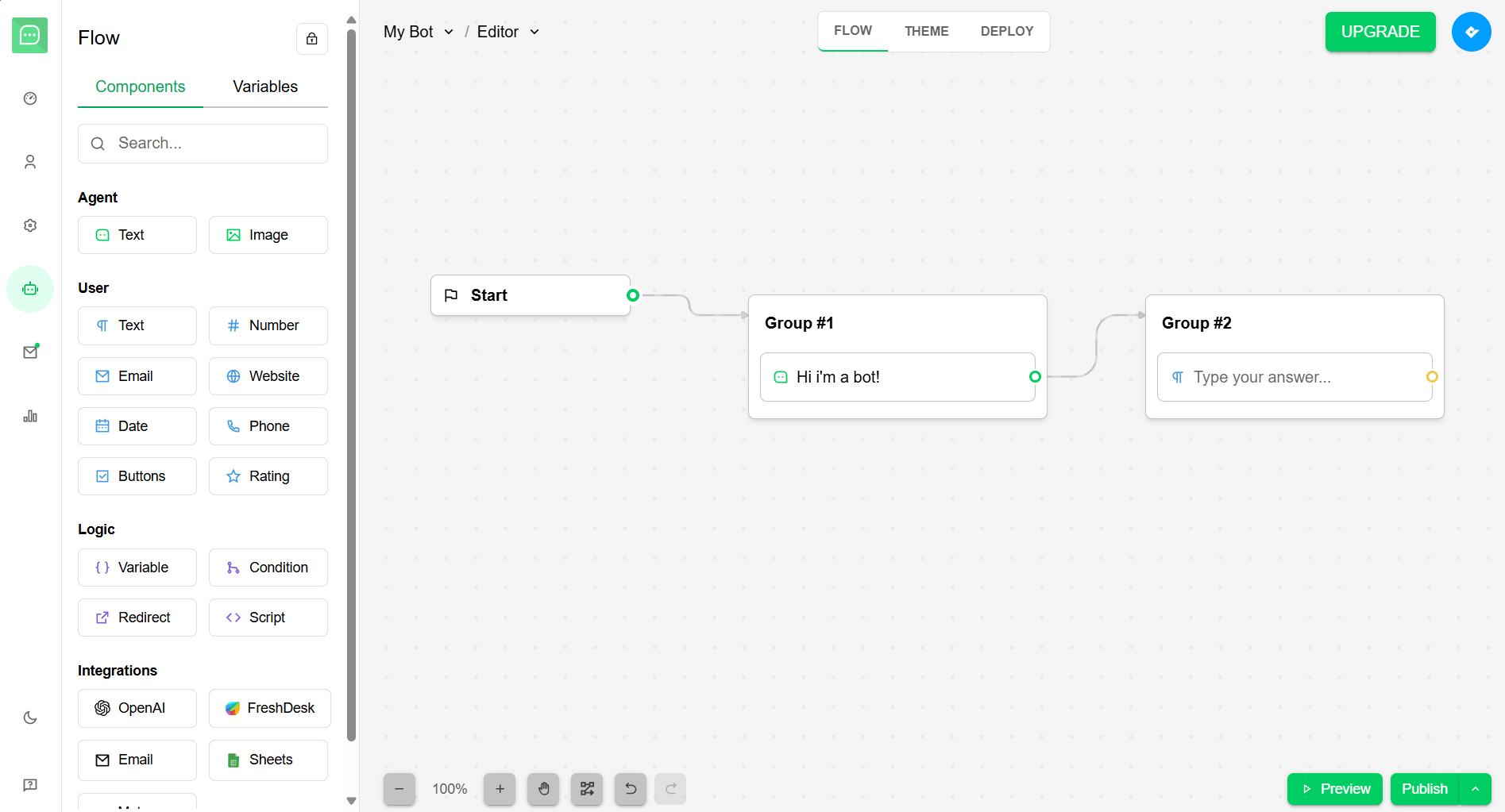
The Flow editor is the visual workspace where you design your bot's conversation flow by dragging
and connecting blocks together. It provides an intuitive graph-based interface for building complex
conversational experiences.
Blocks are atomic components used to create a bot conversation. Each block has a specific purpose.
By combining different blocks, you can build rich and dynamic conversational experiences.
 ## Accessing the Flow Editor
To access the Flow editor:
1. Go to [bots](https://app.quick.bot/bots)
2. Select a bot from your bot list or create a new one
3. The Flow editor opens by default in the main editor view
4. You can also click the **Flow** button in the left sidebar to return to Flow view from other
editor sections
## Interacting with the Flow Editor
### Graph Area
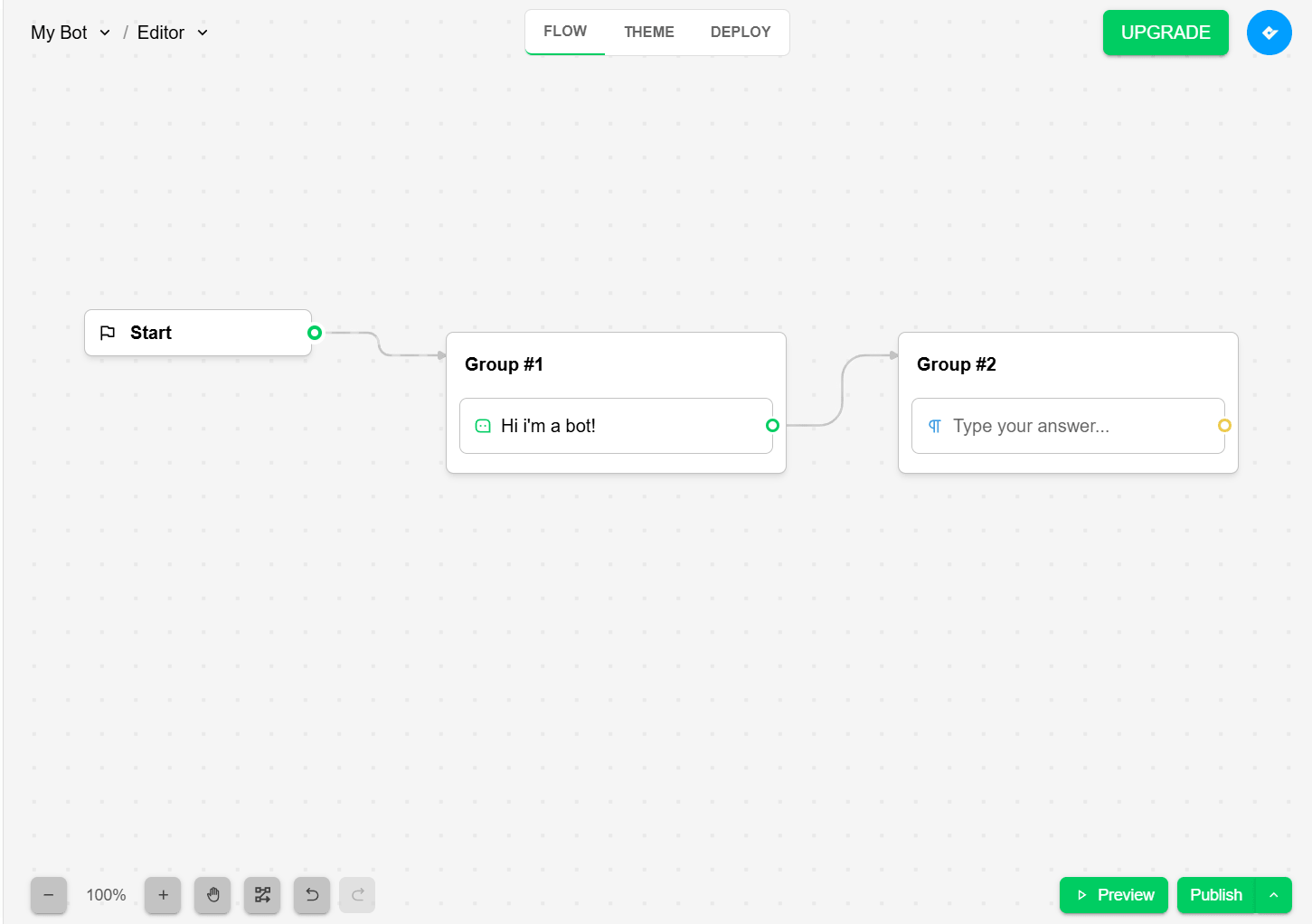
The main graph area is where you build your conversation flow, you can:
* **Drag blocks** from the left sidebar into the graph to add them to your flow.
* **Connect blocks** by dragging from output points to input points, you will see a line connecting
them.
* **Group blocks** to organize your flow visually.
* **Select multiple blocks** for bulk operations.
* **Zoom** in/out click or `Ctrl` + `Mouse wheel`
* **Pan** the graph by clicking and dragging or using the `Space` key + drag, you can also use the
mouse wheel for vertical pan.
* **Undo/redo** to correct mistakes. `Ctrl` + `z` to undo and `Ctrl` + `y` to redo
* **Auto organize**: The system automatically aligns blocks and connections for clarity.
* **Preview button**: Test your flow in a live simulation environment.
* **Publish button**: Deploy your flow to make it live for users.
## Accessing the Flow Editor
To access the Flow editor:
1. Go to [bots](https://app.quick.bot/bots)
2. Select a bot from your bot list or create a new one
3. The Flow editor opens by default in the main editor view
4. You can also click the **Flow** button in the left sidebar to return to Flow view from other
editor sections
## Interacting with the Flow Editor
### Graph Area
The main graph area is where you build your conversation flow, you can:
* **Drag blocks** from the left sidebar into the graph to add them to your flow.
* **Connect blocks** by dragging from output points to input points, you will see a line connecting
them.
* **Group blocks** to organize your flow visually.
* **Select multiple blocks** for bulk operations.
* **Zoom** in/out click or `Ctrl` + `Mouse wheel`
* **Pan** the graph by clicking and dragging or using the `Space` key + drag, you can also use the
mouse wheel for vertical pan.
* **Undo/redo** to correct mistakes. `Ctrl` + `z` to undo and `Ctrl` + `y` to redo
* **Auto organize**: The system automatically aligns blocks and connections for clarity.
* **Preview button**: Test your flow in a live simulation environment.
* **Publish button**: Deploy your flow to make it live for users.
 ### Flow Sidebar
The left sidebar contains all the tools and resources you need to build your flow, is divided into
two main sections, components and variables.
In the **Components tab**, you can find all available block types, organized into categories.
* **Bubbles**: are the main building blocks of your flow, they represent messages, actions, and
logic in your bot's conversation. Each block type has its own configuration options and can be
customized to fit your bot's needs.
* **Inputs**: Blocks that capture user input, such as text, buttons, or forms. These blocks allow
your bot to interact with users and collect information.
* **Logic**: Blocks that control the flow of the conversation based on conditions, variables, or
user input. These blocks enable your bot to make decisions and respond dynamically.
* **Integrations**: Blocks that connect your bot to external services, APIs, or databases. These
blocks allow your bot to fetch data, send notifications, or perform actions outside of the chat
interface.
You will note that complex blocks, such as integrations, has pre built templates that you can use
to quickly set up your flow and learn how to use them.
In the **Variables tab**, you can manage all the variables used in your flow. Variables are used to
store and manipulate data throughout the conversation. You can create, edit, and delete variables.
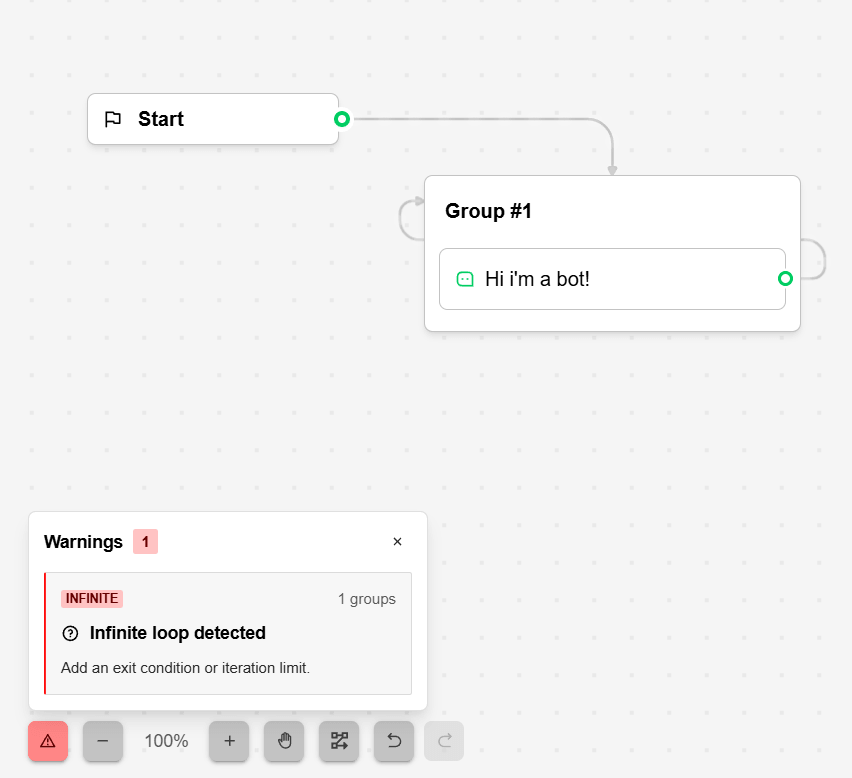
### Warnings and validation
When you have blocks connected in a way that is not valid, the system will show you a warning
message with the issue and where it is located. You can click on the warning to be taken to the
block that has the issue.
### Flow Sidebar
The left sidebar contains all the tools and resources you need to build your flow, is divided into
two main sections, components and variables.
In the **Components tab**, you can find all available block types, organized into categories.
* **Bubbles**: are the main building blocks of your flow, they represent messages, actions, and
logic in your bot's conversation. Each block type has its own configuration options and can be
customized to fit your bot's needs.
* **Inputs**: Blocks that capture user input, such as text, buttons, or forms. These blocks allow
your bot to interact with users and collect information.
* **Logic**: Blocks that control the flow of the conversation based on conditions, variables, or
user input. These blocks enable your bot to make decisions and respond dynamically.
* **Integrations**: Blocks that connect your bot to external services, APIs, or databases. These
blocks allow your bot to fetch data, send notifications, or perform actions outside of the chat
interface.
You will note that complex blocks, such as integrations, has pre built templates that you can use
to quickly set up your flow and learn how to use them.
In the **Variables tab**, you can manage all the variables used in your flow. Variables are used to
store and manipulate data throughout the conversation. You can create, edit, and delete variables.
### Warnings and validation
When you have blocks connected in a way that is not valid, the system will show you a warning
message with the issue and where it is located. You can click on the warning to be taken to the
block that has the issue.
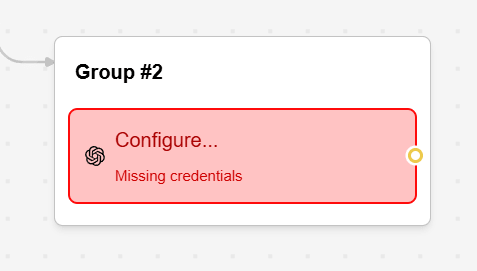
 Also working with integrations, you may encounter warnings related to missing or incorrect
configuration. The system will highlight the affected blocks.
Also working with integrations, you may encounter warnings related to missing or incorrect
configuration. The system will highlight the affected blocks.
 Learn about all available block types and their configurations
Manage data flow between blocks with variables
Learn about all available block types and their configurations
Manage data flow between blocks with variables