> ## Documentation Index
> Fetch the complete documentation index at: https://docs.quick.bot/llms.txt
> Use this file to discover all available pages before exploring further.
# Invite
The Invite feature allows you to collaborate with team members and share your bot with external
users. You can control access levels and make your bot publicly available for testing and
collaboration.
## Accessing the Invite Panel
To invite collaborators or share your bot:
1. **Open your bot** in the Flow editor
2. **Click the Invite button** (share icon) in the top toolbar
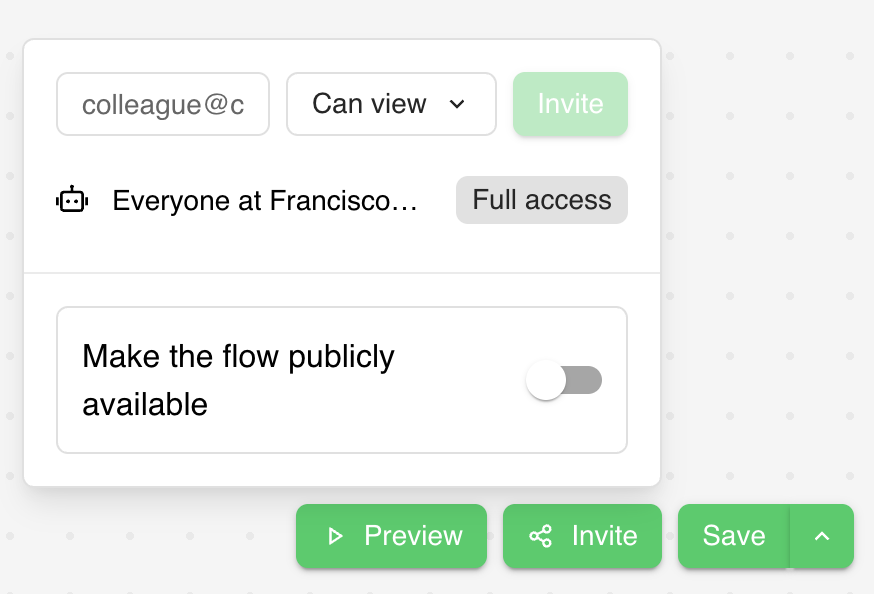
3. **The invite panel will open** as a dropdown, showing current collaborators and sharing options
## Collaboration Types
QuickBot offers three levels of collaboration access:
### View Access
* **Can view** the bot flow and structure
* **Can preview** the bot and test functionality
* **Cannot modify** blocks, settings, or bot configuration
* **Cannot access** results or analytics
* **Ideal for**: Stakeholders, reviewers, or clients who need to see the bot but not edit it
### Edit Access
* **Can view and edit** the bot flow and all blocks
* **Can modify** bot settings, theme, and configuration
* **Can access** results and analytics
* **Can preview** and test the bot
* **Cannot manage** collaborators or delete the bot
* **Ideal for**: Team members, developers, or content creators
### Full Access
* **All Edit permissions** plus administrative controls
* **Can manage collaborators** (invite, remove, change permissions)
* **Can delete** the bot
* **Can change** workspace and billing settings related to the bot
* **Automatic for**: Workspace owners and admins
## Inviting Collaborators
### Individual Invitations
To invite specific people to collaborate:
1. **Click the Invite button** in your bot's toolbar
2. **Enter the email address** of the person you want to invite
3. **Select the collaboration type** (View or Edit) from the dropdown
4. **Click "Invite"** to send the invitation
5. **The invitee will receive an email** with instructions to access the bot
### Workspace Team Access
All members of your workspace automatically have access based on their workspace role:
* **Workspace Owners/Admins**: Full access to all bots
* **Workspace Members**: Can be granted specific access per bot
* **Workspace Guests**: Limited access based on individual invitations
### Managing Existing Collaborators
In the collaborators list, you can:
* **Change permission levels** by clicking the role dropdown next to each collaborator
* **Remove collaborators** by clicking the delete icon
* **View pending invitations** and their status
* **Resend invitations** if needed
## Public Sharing
### Make Bot Publicly Available
For broader sharing without requiring individual invitations:
1. **Open the Invite panel**
2. **Toggle "Make the flow publicly available"**
3. **Copy the generated public URL**
4. **Share the URL** with anyone you want to access the bot
### Public Access Features
When a bot is publicly shared:
* **No authentication required** to access the bot
* **Anyone with the link** can view the flow
* **Visitors can test** the bot in preview mode
* **Full flow visibility** including all blocks and connections
* **Read-only access** - no editing capabilities
* **Ideal for**: Client presentations, public demos, or team reviews
 ### Security Considerations
* **Public links** are not indexed by search engines but are accessible to anyone with the URL
* **No sensitive data** should be included in publicly shared bots
* **Results and analytics** are never accessible through public sharing
* **You can disable** public sharing at any time
## Billing and Limits
### Guest Collaboration Limits
Collaboration features may be restricted based on your billing plan:
* **Free plans**: Limited number of collaborators
* **Paid plans**: Increased or unlimited collaborations
* **Enterprise plans**: Advanced permission controls
### Workspace Integration
* **Collaborator invitations** count toward your workspace member limits
* **Guest access** may be restricted on certain billing plans
* **Check your billing page** for specific collaboration limits
## Best Practices
### Permission Management
* **Use View access** for stakeholders who only need to review
* **Grant Edit access** to active team members and content creators
* **Reserve Full access** for trusted administrators
* **Regularly review** collaborator lists and remove unused access
### Public Sharing
* **Disable public sharing** when not needed for security
* **Use descriptive bot names** since they appear in public URLs
* **Test public links** before sharing to ensure proper functionality
* **Monitor usage** if sharing broadly
### Team Collaboration
* **Establish clear roles** for different team members
* **Use workspace organization** to manage multiple bot projects
* **Communicate changes** when modifying shared bots
* **Document bot purpose** for new collaborators
## Troubleshooting
### Invitation Issues
**Invitations not received**:
* Check spam/junk folders
* Verify email address spelling
* Ensure recipient has a QuickBot account or can create one
* Resend invitation if needed
**Collaborator cannot access bot**:
* Verify their permission level
* Check if they're accessing the correct workspace
* Ensure bot sharing settings are enabled
* Confirm their workspace membership status
**Public sharing not working**:
* Ensure "Make the flow publicly available" is enabled
* Verify the public URL is copied correctly
* Check if bot has any configuration errors
* Test the public link in an incognito browser
Learn how to manage your workspace team and roles
Publish your bot and make it available to end users
Use collaboration strategically - invite stakeholders with View access early in development to
gather feedback, then grant Edit access to implementers when ready for build-out.
### Security Considerations
* **Public links** are not indexed by search engines but are accessible to anyone with the URL
* **No sensitive data** should be included in publicly shared bots
* **Results and analytics** are never accessible through public sharing
* **You can disable** public sharing at any time
## Billing and Limits
### Guest Collaboration Limits
Collaboration features may be restricted based on your billing plan:
* **Free plans**: Limited number of collaborators
* **Paid plans**: Increased or unlimited collaborations
* **Enterprise plans**: Advanced permission controls
### Workspace Integration
* **Collaborator invitations** count toward your workspace member limits
* **Guest access** may be restricted on certain billing plans
* **Check your billing page** for specific collaboration limits
## Best Practices
### Permission Management
* **Use View access** for stakeholders who only need to review
* **Grant Edit access** to active team members and content creators
* **Reserve Full access** for trusted administrators
* **Regularly review** collaborator lists and remove unused access
### Public Sharing
* **Disable public sharing** when not needed for security
* **Use descriptive bot names** since they appear in public URLs
* **Test public links** before sharing to ensure proper functionality
* **Monitor usage** if sharing broadly
### Team Collaboration
* **Establish clear roles** for different team members
* **Use workspace organization** to manage multiple bot projects
* **Communicate changes** when modifying shared bots
* **Document bot purpose** for new collaborators
## Troubleshooting
### Invitation Issues
**Invitations not received**:
* Check spam/junk folders
* Verify email address spelling
* Ensure recipient has a QuickBot account or can create one
* Resend invitation if needed
**Collaborator cannot access bot**:
* Verify their permission level
* Check if they're accessing the correct workspace
* Ensure bot sharing settings are enabled
* Confirm their workspace membership status
**Public sharing not working**:
* Ensure "Make the flow publicly available" is enabled
* Verify the public URL is copied correctly
* Check if bot has any configuration errors
* Test the public link in an incognito browser
Learn how to manage your workspace team and roles
Publish your bot and make it available to end users
Use collaboration strategically - invite stakeholders with View access early in development to
gather feedback, then grant Edit access to implementers when ready for build-out.