> ## Documentation Index
> Fetch the complete documentation index at: https://docs.quick.bot/llms.txt
> Use this file to discover all available pages before exploring further.
# Publish
Publishing your bot makes it available to users at its public URL and enables data collection.
## Published vs Unpublished Bots
**Unpublished bots**:
* Only accessible to workspace members and invited collaborators
* Changes are automatically saved as drafts
* No public URL access for end users
* Results collection is disabled
**Published bots**:
* Accessible via public URL to anyone
* Results collection is active
* Can be embedded in websites and applications
* Version-controlled - unpublished changes don't affect live bot
## Publishing Your Bot
To publish your bot:
1. Click the **Publish** button in the top toolbar.
2. Confirm publish in the modal.
* Optional, enable the **End all active sessions** to close remaining conversations.
3. Your bot is now live at its public URL
The Publish button shows different states:
* **"Publish"** - First time publishing or unpublished bot
* **"Save"** - Bot has unpublished changes that need publishing
* **"Published"** - Bot is live and up-to-date
### Publishing States and Controls
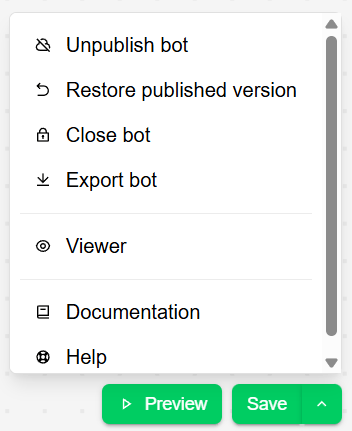 * **"Unpublish bot"** - Take the bot offline; users will see "The bot you're looking for doesn't
exist"
* **"Restore published version"** - Discard current changes and revert to the live published version
* **"Close bot"** - Temporarily disable the bot; users will see "This bot is now closed"
* **"Reopen bot"** - Reactivate a closed bot.
* **"Export bot"** - Download bot configuration as JSON file.
Always test your bot thoroughly in Preview mode before publishing. Once published, changes require
republishing to take effect for users.
### Publishing Issues
**Bot won't publish**:
* Check for incomplete blocks or missing connections
* Verify all required fields are filled
* Ensure no validation errors exist
* Try refreshing the page and publishing again
**Changes not appearing**:
* Confirm you clicked "Publish" not just "Save"
* Clear browser cache and reload
* Check if bot is closed or unpublished
* Verify correct URL is being accessed
Learn about embedding and deployment options
Analyze user interactions and bot performance
* **"Unpublish bot"** - Take the bot offline; users will see "The bot you're looking for doesn't
exist"
* **"Restore published version"** - Discard current changes and revert to the live published version
* **"Close bot"** - Temporarily disable the bot; users will see "This bot is now closed"
* **"Reopen bot"** - Reactivate a closed bot.
* **"Export bot"** - Download bot configuration as JSON file.
Always test your bot thoroughly in Preview mode before publishing. Once published, changes require
republishing to take effect for users.
### Publishing Issues
**Bot won't publish**:
* Check for incomplete blocks or missing connections
* Verify all required fields are filled
* Ensure no validation errors exist
* Try refreshing the page and publishing again
**Changes not appearing**:
* Confirm you clicked "Publish" not just "Save"
* Clear browser cache and reload
* Check if bot is closed or unpublished
* Verify correct URL is being accessed
Learn about embedding and deployment options
Analyze user interactions and bot performance