> ## Documentation Index
> Fetch the complete documentation index at: https://docs.quick.bot/llms.txt
> Use this file to discover all available pages before exploring further.
# Variables
Variables are placeholders for dynamic content that you can use throughout your bot to create
personalized user experiences. They store data collected from user inputs, external integrations, or
predefined values, making your conversations interactive and context-aware.
 ## Understanding Variables
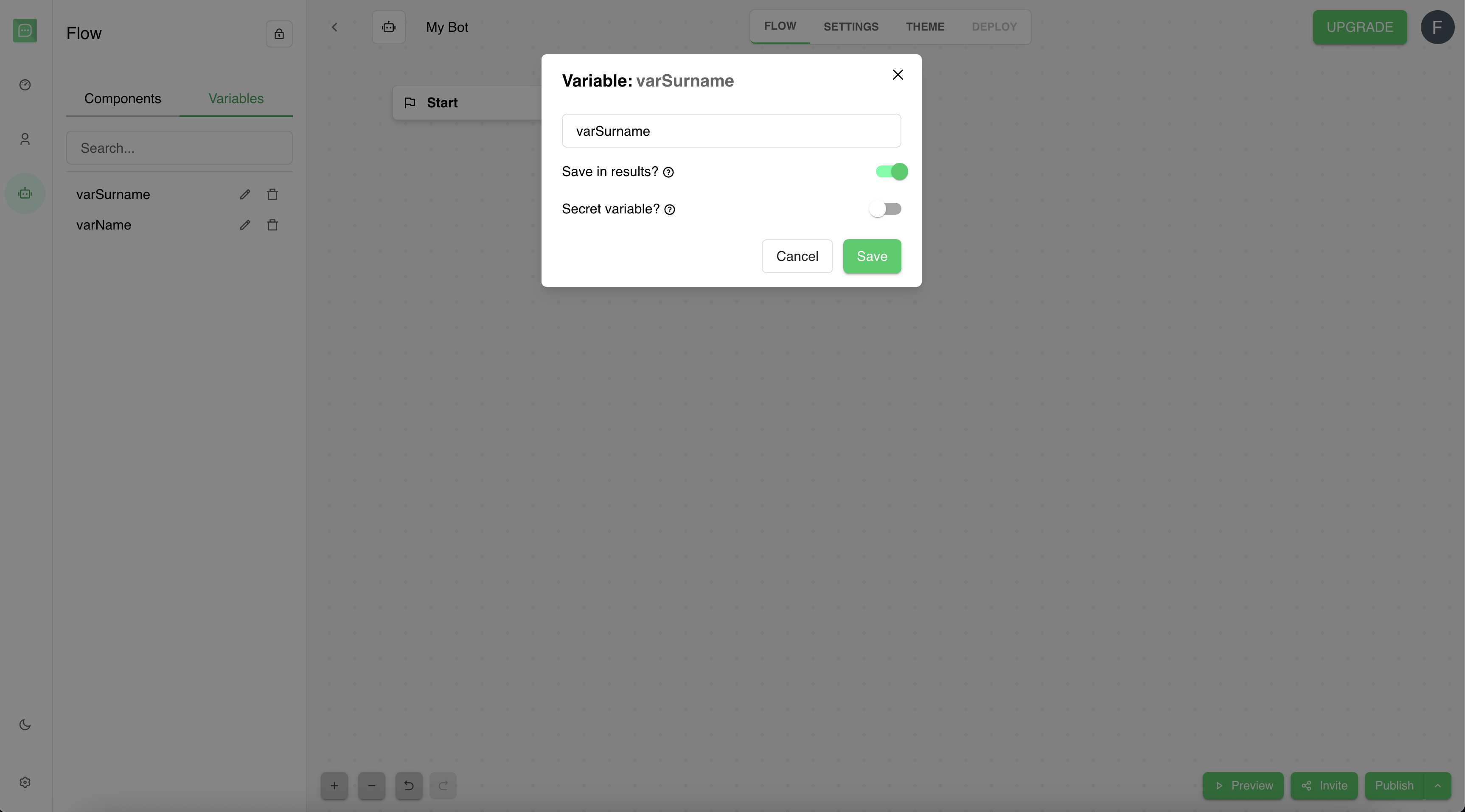
Variables in QuickBot serve as data containers that can store:
* **User responses** from user blocks (text, email, choices, etc.)
* **External data** from integrations (APIs, databases, etc.)
* **System values** (timestamps, user IDs, random values, etc.)
* **Calculated values** from custom scripts or logic blocks
## Understanding Variables
Variables in QuickBot serve as data containers that can store:
* **User responses** from user blocks (text, email, choices, etc.)
* **External data** from integrations (APIs, databases, etc.)
* **System values** (timestamps, user IDs, random values, etc.)
* **Calculated values** from custom scripts or logic blocks
 ### Accessing Variables
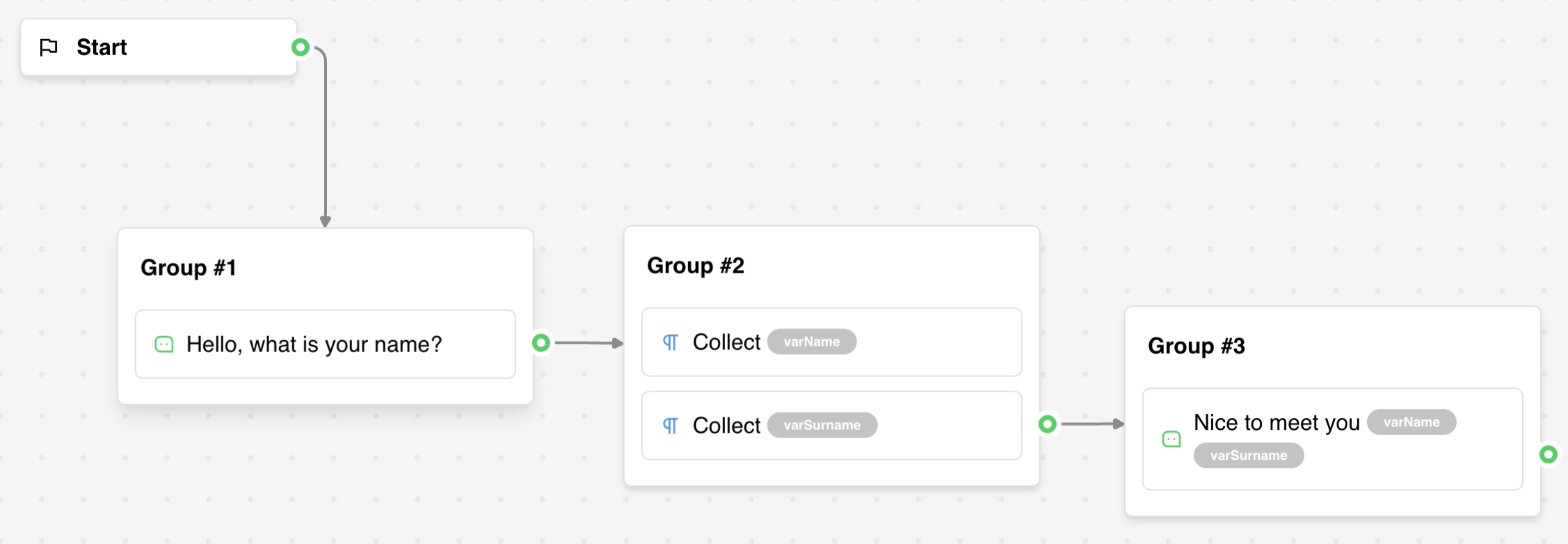
In the flow editor blocks, you'll find some fields with a {} icon. This field allows you to view the
variables dropdown. This dropdown shows all available variables for use in the bot.
* **View all variables**: See every variable declared in your bot.
* **Search variables**: Use the search bar to quickly find specific variables.
* **Create new variables**: Click the plus icon or type a new name to create variables.
* **Insert variables**: Click the variable and it will be inserted into the field.
* **Edit variables**: Click the edit icon to modify variable properties.
* **Delete variables**: Click the delete icon to remove the variable.
### Accessing Variables
In the flow editor blocks, you'll find some fields with a {} icon. This field allows you to view the
variables dropdown. This dropdown shows all available variables for use in the bot.
* **View all variables**: See every variable declared in your bot.
* **Search variables**: Use the search bar to quickly find specific variables.
* **Create new variables**: Click the plus icon or type a new name to create variables.
* **Insert variables**: Click the variable and it will be inserted into the field.
* **Edit variables**: Click the edit icon to modify variable properties.
* **Delete variables**: Click the delete icon to remove the variable.
 ## Creating Variables
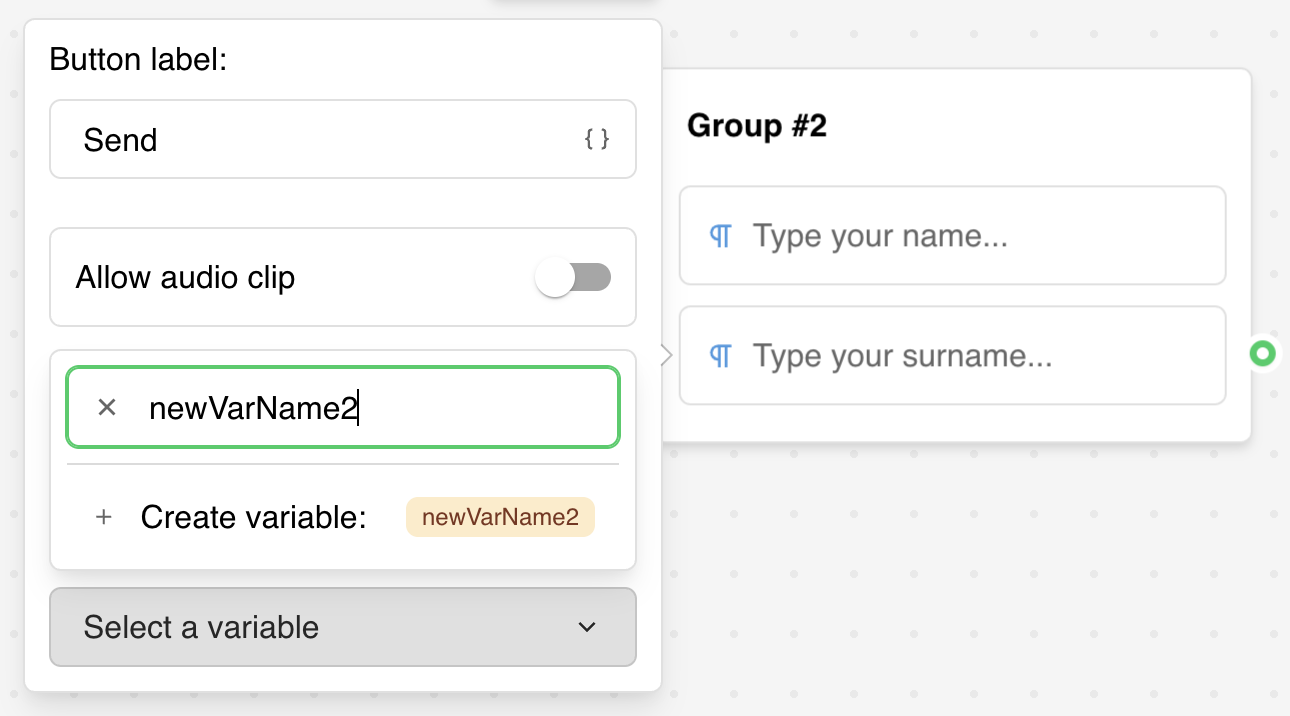
### From Input Blocks
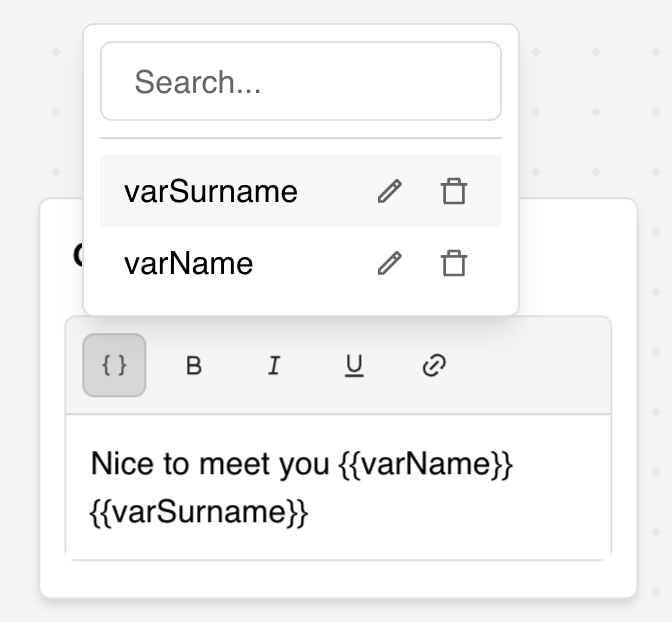
The most common way to create variables is by configuring user blocks:
1. **Add an user block** (Text Input, Email, Buttons, etc.)
2. **Open the block settings**
3. **Select "Save answer in a variable"**
4. **Choose an existing variable** or type a new name to create one
5. **User responses** will automatically be stored in the variable
## Creating Variables
### From Input Blocks
The most common way to create variables is by configuring user blocks:
1. **Add an user block** (Text Input, Email, Buttons, etc.)
2. **Open the block settings**
3. **Select "Save answer in a variable"**
4. **Choose an existing variable** or type a new name to create one
5. **User responses** will automatically be stored in the variable
 ### From Variables Panel
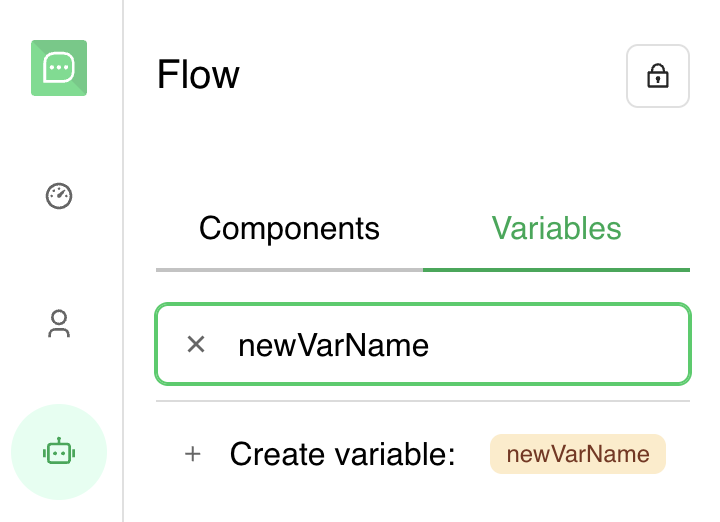
Create variables directly in the Variables tab:
1. **Open Variables tab** in the Flow editor sidebar
2. **Type a new variable name** in the search box
3. **Click "Create variable"** when prompted
4. **Configure variable properties** in the edit modal
### From Variables Panel
Create variables directly in the Variables tab:
1. **Open Variables tab** in the Flow editor sidebar
2. **Type a new variable name** in the search box
3. **Click "Create variable"** when prompted
4. **Configure variable properties** in the edit modal
 ### Using Set Variable Block
For advanced variable management, use the Set Variable logic block:
1. **Drag a Set Variable block** onto the canvas
2. **Choose or create a variable** to modify
3. **Select the value type**:
* **Custom**: Text or JavaScript expressions
* **System variables**: Access built-in system values
* **List operations**: Append, pop, or manipulate arrays
* **Data mapping**: Transform data from other variables
## System Variables
QuickBot provides built-in system variables that give you access to contextual information about the
conversation, user, and environment. These variables are automatically available and can be
referenced directly using the `{{system_variableName}}` syntax.
### Available System Variables
#### Date and Time
* **`{{system_today}}`**: Current date (YYYY-MM-DD format)
* **`{{system_now}}`**: Current date and time (ISO 8601 format)
* **`{{system_yesterday}}`**: Previous day's date
* **`{{system_tomorrow}}`**: Next day's date
* **`{{system_momentOfTheDay}}`**: Time-based greeting value: `morning`, `afternoon`, `evening`, or
`night`
**Example usage:**
```
Today's date is {{system_today}}
Current timestamp: {{system_now}}
```
#### Session Information
* **`{{system_randomId}}`**: Unique random identifier (CUID algorithm)
* **`{{Conversation}}`**: Complete conversation transcript including all messages exchanged
**Example usage:**
```
Session ID: {{system_randomId}}
```
#### Environment Context
* **`{{system_platform}}`**: Platform identifier (`web` or `whatsapp`)
* **`{{system_device}}`**: Device type (`mobile` or `desktop`)
**Example usage:**
```
You're using QuickBot on {{system_platform}}
```
#### WhatsApp-Specific Variables
Available only when the conversation is on WhatsApp:
* **`{{system_whatsapp_number}}`**: User's WhatsApp phone number
* **`{{system_whatsapp_name}}`**: User's WhatsApp contact name
**Example usage:**
```
Hello {{system_whatsapp_name}}, your number is {{system_whatsapp_number}}
```
### Using System Variables
System variables can be used anywhere regular variables are accepted:
**In text bubbles:**
```
Good {{system_momentOfTheDay}}, welcome to our bot!
```
**In Set Variable blocks:**
```
{{Conversation}}
```
**In JavaScript expressions:**
```js theme={null}
{{=new Date({{system_now}}).toLocaleDateString()=}}
```
**In condition blocks:**
```
If {{system_platform}} equals "whatsapp"
```
### System Variable Characteristics
* **Read-only**: System variables are automatically populated and cannot be manually modified
* **Always available**: No need to create or initialize them
* **Real-time**: Values are computed at runtime based on the current context
* **Not saved in results**: Most system variables are not persisted in the results table by default
* **No initialization required**: Ready to use immediately without any setup
## Using Variables in Your Bot
### Basic Variable Syntax
Display variable content using double curly braces:
```
{{varName}}
```
**Example**: "Hello `{{varName}}`, welcome back!"
### Inline Variable Formatting
Transform variables using JavaScript expressions:
```
{{={{varName}}.toUpperCase()=}}
```
**Common transformations**:
* **Uppercase**: `{{={{Name}}.toUpperCase()=}}`
* **Lowercase**: `{{={{Name}}.toLowerCase()=}}`
* **First item of list**: `{{={{Items}}[0]=}}` or `{{={{Items}}.at(0)=}}`
* **Last item of list**: `{{={{Items}}.at(-1)=}}`
* **List length**: `{{={{Items}}.length=}}`
* **Date formatting**: `{{=new Date({{Date}}).toLocaleDateString()=}}`
### Variable Types and Operations
Variables support these data types:
* **String**: Single text values
* **Array**: Lists of text values
* **Mixed**: Automatically converted to string representation
## Variable Properties
### Save in Results
Control whether variables appear in your results export:
* **Enabled**: Variable values appear as columns in results
* **Disabled**: Variables are used internally but not exported
* **Use case**: Enable for important data, disable for temporary calculations
### Secret Variables
Mark variables as secret to protect sensitive information:
* **Secret variables** are not saved in results
* **Cannot be exported** or viewed in the results panel
* **Ideal for**: API keys, personal data, temporary tokens
* **Visual indicator**: Lock icon appears next to secret variables
## Advanced Variable Concepts
### Prefilled Variables
Initialize variables before the conversation starts:
**URL Parameters**:
```
https://quick.bot/my-bot?Email=john@gmail.com&First%20name=John
```
(Note: Replace spaces with `%20` in URLs)
**Embed Library**:
```js theme={null}
QuickBot.initBubble({
botId: 'your-bot-id',
prefilledVariables: {
Email: 'john@gmail.com',
'First Name': 'John',
'User ID': '12345',
},
})
```
### Save variables in results
You can also use save variables in results for internal tracking like:
* **Marketing**: UTM parameters, campaign IDs
* **User context**: Session IDs, referrer information
* **System data**: Timestamps, environment variables
* **Analytics**: Custom event tracking, user segments
**Use cases**:
* Track marketing campaign effectiveness
* Store user authentication data
* Maintain session context across conversations
* Collect analytics without user input
### Variable Validation and Types
Variables automatically handle type conversion:
**Valid types**:
```ts theme={null}
// ✅ Recommended
'Hello World'[('option1', 'option2')] // String // String array
;('123') // Number as string
;('true') // Boolean as string
```
**Auto-conversion**:
```ts theme={null}
// These are automatically converted
123 → '123'
true → 'true'
{ name: 'John' } → '{"name":"John"}'
```
**Complex data handling**:
```ts theme={null}
// Store complex objects as JSON strings
Use: {{=JSON.stringify({name: 'John', age: 30})=}}
// Parse back to objects when needed
Use: {{=JSON.parse({{User Data}}).name=}}
```
## Variable Best Practices
### Naming Conventions
* **Use descriptive names**: "User Email" instead of "email"
* **Be consistent**: Use the same case style throughout
* **Avoid special characters**: Stick to letters, numbers, and spaces
* **Group related variables**: "Address Line 1", "Address Line 2"
### Organization
* **Delete unused variables** to keep your bot clean
* **Use secret variables** for sensitive data
* **Enable "Save in Results"** only for variables you need to export
* **Group variables logically** in your variable names
### Performance
* **Avoid deeply nested objects** in variables
* **Use arrays efficiently** with proper indexing
* **Clean up temporary variables** when no longer needed
* **Test variable transformations** to ensure correct output
## Troubleshooting Variables
### Common Issues
**Variable not displaying**:
* Check variable name spelling and case
* Ensure variable has been created and assigned a value
* Verify variable syntax: `{{varName}}`
**Incorrect formatting**:
* Test JavaScript expressions in Set Variable block first
* Check for typos in transformation code
* Ensure proper escape characters for special content
**Missing in results**:
* Enable "Save in Results" in variable properties
* Check that variable isn't marked as secret
* Verify variable has collected values from users
Learn how to manipulate and calculate variable values
Use variables in conditional logic and flow control
Use the Variables tab frequently while building your bot. It provides a centralized view of all
your data and makes it easy to manage complex bots with many variables.
### Using Set Variable Block
For advanced variable management, use the Set Variable logic block:
1. **Drag a Set Variable block** onto the canvas
2. **Choose or create a variable** to modify
3. **Select the value type**:
* **Custom**: Text or JavaScript expressions
* **System variables**: Access built-in system values
* **List operations**: Append, pop, or manipulate arrays
* **Data mapping**: Transform data from other variables
## System Variables
QuickBot provides built-in system variables that give you access to contextual information about the
conversation, user, and environment. These variables are automatically available and can be
referenced directly using the `{{system_variableName}}` syntax.
### Available System Variables
#### Date and Time
* **`{{system_today}}`**: Current date (YYYY-MM-DD format)
* **`{{system_now}}`**: Current date and time (ISO 8601 format)
* **`{{system_yesterday}}`**: Previous day's date
* **`{{system_tomorrow}}`**: Next day's date
* **`{{system_momentOfTheDay}}`**: Time-based greeting value: `morning`, `afternoon`, `evening`, or
`night`
**Example usage:**
```
Today's date is {{system_today}}
Current timestamp: {{system_now}}
```
#### Session Information
* **`{{system_randomId}}`**: Unique random identifier (CUID algorithm)
* **`{{Conversation}}`**: Complete conversation transcript including all messages exchanged
**Example usage:**
```
Session ID: {{system_randomId}}
```
#### Environment Context
* **`{{system_platform}}`**: Platform identifier (`web` or `whatsapp`)
* **`{{system_device}}`**: Device type (`mobile` or `desktop`)
**Example usage:**
```
You're using QuickBot on {{system_platform}}
```
#### WhatsApp-Specific Variables
Available only when the conversation is on WhatsApp:
* **`{{system_whatsapp_number}}`**: User's WhatsApp phone number
* **`{{system_whatsapp_name}}`**: User's WhatsApp contact name
**Example usage:**
```
Hello {{system_whatsapp_name}}, your number is {{system_whatsapp_number}}
```
### Using System Variables
System variables can be used anywhere regular variables are accepted:
**In text bubbles:**
```
Good {{system_momentOfTheDay}}, welcome to our bot!
```
**In Set Variable blocks:**
```
{{Conversation}}
```
**In JavaScript expressions:**
```js theme={null}
{{=new Date({{system_now}}).toLocaleDateString()=}}
```
**In condition blocks:**
```
If {{system_platform}} equals "whatsapp"
```
### System Variable Characteristics
* **Read-only**: System variables are automatically populated and cannot be manually modified
* **Always available**: No need to create or initialize them
* **Real-time**: Values are computed at runtime based on the current context
* **Not saved in results**: Most system variables are not persisted in the results table by default
* **No initialization required**: Ready to use immediately without any setup
## Using Variables in Your Bot
### Basic Variable Syntax
Display variable content using double curly braces:
```
{{varName}}
```
**Example**: "Hello `{{varName}}`, welcome back!"
### Inline Variable Formatting
Transform variables using JavaScript expressions:
```
{{={{varName}}.toUpperCase()=}}
```
**Common transformations**:
* **Uppercase**: `{{={{Name}}.toUpperCase()=}}`
* **Lowercase**: `{{={{Name}}.toLowerCase()=}}`
* **First item of list**: `{{={{Items}}[0]=}}` or `{{={{Items}}.at(0)=}}`
* **Last item of list**: `{{={{Items}}.at(-1)=}}`
* **List length**: `{{={{Items}}.length=}}`
* **Date formatting**: `{{=new Date({{Date}}).toLocaleDateString()=}}`
### Variable Types and Operations
Variables support these data types:
* **String**: Single text values
* **Array**: Lists of text values
* **Mixed**: Automatically converted to string representation
## Variable Properties
### Save in Results
Control whether variables appear in your results export:
* **Enabled**: Variable values appear as columns in results
* **Disabled**: Variables are used internally but not exported
* **Use case**: Enable for important data, disable for temporary calculations
### Secret Variables
Mark variables as secret to protect sensitive information:
* **Secret variables** are not saved in results
* **Cannot be exported** or viewed in the results panel
* **Ideal for**: API keys, personal data, temporary tokens
* **Visual indicator**: Lock icon appears next to secret variables
## Advanced Variable Concepts
### Prefilled Variables
Initialize variables before the conversation starts:
**URL Parameters**:
```
https://quick.bot/my-bot?Email=john@gmail.com&First%20name=John
```
(Note: Replace spaces with `%20` in URLs)
**Embed Library**:
```js theme={null}
QuickBot.initBubble({
botId: 'your-bot-id',
prefilledVariables: {
Email: 'john@gmail.com',
'First Name': 'John',
'User ID': '12345',
},
})
```
### Save variables in results
You can also use save variables in results for internal tracking like:
* **Marketing**: UTM parameters, campaign IDs
* **User context**: Session IDs, referrer information
* **System data**: Timestamps, environment variables
* **Analytics**: Custom event tracking, user segments
**Use cases**:
* Track marketing campaign effectiveness
* Store user authentication data
* Maintain session context across conversations
* Collect analytics without user input
### Variable Validation and Types
Variables automatically handle type conversion:
**Valid types**:
```ts theme={null}
// ✅ Recommended
'Hello World'[('option1', 'option2')] // String // String array
;('123') // Number as string
;('true') // Boolean as string
```
**Auto-conversion**:
```ts theme={null}
// These are automatically converted
123 → '123'
true → 'true'
{ name: 'John' } → '{"name":"John"}'
```
**Complex data handling**:
```ts theme={null}
// Store complex objects as JSON strings
Use: {{=JSON.stringify({name: 'John', age: 30})=}}
// Parse back to objects when needed
Use: {{=JSON.parse({{User Data}}).name=}}
```
## Variable Best Practices
### Naming Conventions
* **Use descriptive names**: "User Email" instead of "email"
* **Be consistent**: Use the same case style throughout
* **Avoid special characters**: Stick to letters, numbers, and spaces
* **Group related variables**: "Address Line 1", "Address Line 2"
### Organization
* **Delete unused variables** to keep your bot clean
* **Use secret variables** for sensitive data
* **Enable "Save in Results"** only for variables you need to export
* **Group variables logically** in your variable names
### Performance
* **Avoid deeply nested objects** in variables
* **Use arrays efficiently** with proper indexing
* **Clean up temporary variables** when no longer needed
* **Test variable transformations** to ensure correct output
## Troubleshooting Variables
### Common Issues
**Variable not displaying**:
* Check variable name spelling and case
* Ensure variable has been created and assigned a value
* Verify variable syntax: `{{varName}}`
**Incorrect formatting**:
* Test JavaScript expressions in Set Variable block first
* Check for typos in transformation code
* Ensure proper escape characters for special content
**Missing in results**:
* Enable "Save in Results" in variable properties
* Check that variable isn't marked as secret
* Verify variable has collected values from users
Learn how to manipulate and calculate variable values
Use variables in conditional logic and flow control
Use the Variables tab frequently while building your bot. It provides a centralized view of all
your data and makes it easy to manage complex bots with many variables.