> ## Documentation Index
> Fetch the complete documentation index at: https://docs.quick.bot/llms.txt
> Use this file to discover all available pages before exploring further.
# Settings
## General
The general settings represent the general behaviors of your bot.
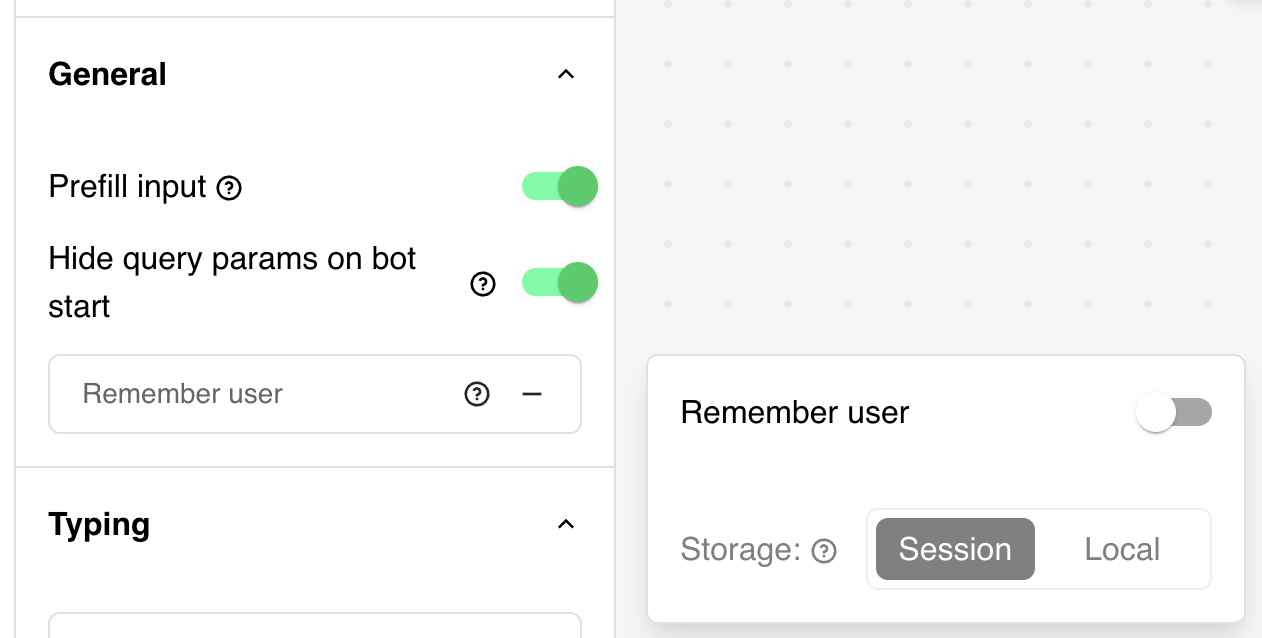 * **Prefill input**: If enabled, the inputs will be automatically pre-filled whenever their
associated variable has a value.
* **Hide query params on bot start**: If enabled, the query params will be hidden when the bot
starts.
* **Remember user**: If enabled, the bot will remember the user's previous interactions and use them
to improve future responses.
## Typing emulation
By default, your bot will emulate a certain typing speed. It is considered a good default as slow as
a human typing speed and it's not too fast so that multiple bubbles can be read sequentially.
You can customize this typing speed in the settings:
* **Prefill input**: If enabled, the inputs will be automatically pre-filled whenever their
associated variable has a value.
* **Hide query params on bot start**: If enabled, the query params will be hidden when the bot
starts.
* **Remember user**: If enabled, the bot will remember the user's previous interactions and use them
to improve future responses.
## Typing emulation
By default, your bot will emulate a certain typing speed. It is considered a good default as slow as
a human typing speed and it's not too fast so that multiple bubbles can be read sequentially.
You can customize this typing speed in the settings:
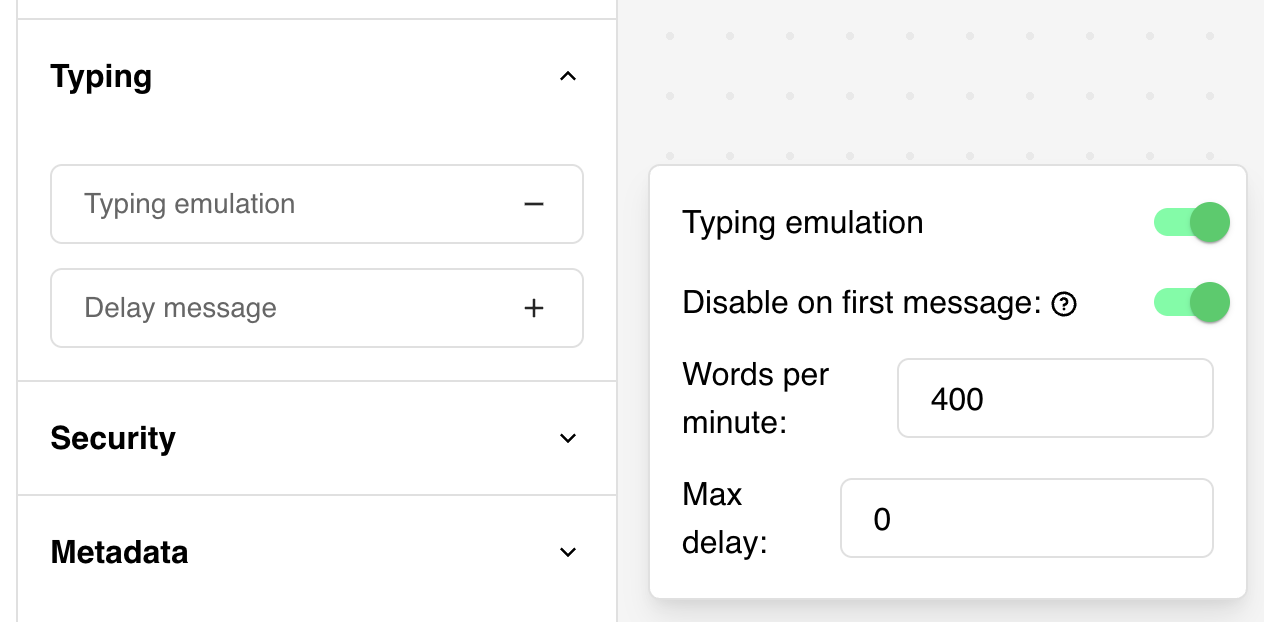 The goal of a bot is not to pretend that the bot is a real human. So we suggest not setting the
typing speed too low.
The `Disable on first message` allows you to disable the typing emulation on the first message. This
is useful if you want to lower the first message display time since the site can take some time to
load first.
The `Delay between messages` by default is 0 and you can increase it up to 5 seconds if you want to
add a delay between **every** messages sent by the bot. If you ever want to pause the bot just once.
You can insert a [Wait block](../editor/blocks/logic/wait) between both messages.
## Security
By default, your bot can be executed from any origin but you can restrict the execution of your bot
to specific origins. This is useful if you want to embed your bot in your website and prevent it
from being executed on other websites by malicious actors.
For example, if you want to allow your bot to be executed only on `https://my-site.com`, you can add
`https://my-site.com` to the list of allowed origins.
If you add a URL to the list but omit [https://quick.bot](https://quick.bot), then your bot shareable URL will not work
anymore.
## Metadata
In the Metadata section, you can customize how the preview card will look if you share your bot URL
on social media for example.
You can also add some custom head code to add third-party scripts.
### Google Tag Manager
Allows you to easily add a GTM container to your bot. To find your GTM container ID, go to your GTM
dashboard and click on the container you want to use. The ID is displayed in the top right corner.
Note that you should not include it if you are embedding your bot in an existing website. GTM should
be installed in the parent website instead.
### Remember user
Head over to the `Settings` tab of your bot, under the `General` section you can find the
`Remember user` setting.
This setting allows you to save the chat session state into the user's web browser storage. It means
that if he answers a question and then closes the chat, the next time he opens it, the chat will be
in the same state as it was before.
There are 2 storage options:
* **Local storage**: The chat state will be saved in the user's web browser. It will be available
only on the same device and web browser.
* **Session storage**: The chat state will be saved in the user's web browser. It will be available
only on the same device and web browser, but it will be deleted when the user closes the current
tab or the web browser.
Note that if you publish a new version of your bot, saved sessions will be automatically resetted.
It means that if the user has a saved session, if he refreshes the bot and that a new version is
published, the bot will restart from the beginning.
The goal of a bot is not to pretend that the bot is a real human. So we suggest not setting the
typing speed too low.
The `Disable on first message` allows you to disable the typing emulation on the first message. This
is useful if you want to lower the first message display time since the site can take some time to
load first.
The `Delay between messages` by default is 0 and you can increase it up to 5 seconds if you want to
add a delay between **every** messages sent by the bot. If you ever want to pause the bot just once.
You can insert a [Wait block](../editor/blocks/logic/wait) between both messages.
## Security
By default, your bot can be executed from any origin but you can restrict the execution of your bot
to specific origins. This is useful if you want to embed your bot in your website and prevent it
from being executed on other websites by malicious actors.
For example, if you want to allow your bot to be executed only on `https://my-site.com`, you can add
`https://my-site.com` to the list of allowed origins.
If you add a URL to the list but omit [https://quick.bot](https://quick.bot), then your bot shareable URL will not work
anymore.
## Metadata
In the Metadata section, you can customize how the preview card will look if you share your bot URL
on social media for example.
You can also add some custom head code to add third-party scripts.
### Google Tag Manager
Allows you to easily add a GTM container to your bot. To find your GTM container ID, go to your GTM
dashboard and click on the container you want to use. The ID is displayed in the top right corner.
Note that you should not include it if you are embedding your bot in an existing website. GTM should
be installed in the parent website instead.
### Remember user
Head over to the `Settings` tab of your bot, under the `General` section you can find the
`Remember user` setting.
This setting allows you to save the chat session state into the user's web browser storage. It means
that if he answers a question and then closes the chat, the next time he opens it, the chat will be
in the same state as it was before.
There are 2 storage options:
* **Local storage**: The chat state will be saved in the user's web browser. It will be available
only on the same device and web browser.
* **Session storage**: The chat state will be saved in the user's web browser. It will be available
only on the same device and web browser, but it will be deleted when the user closes the current
tab or the web browser.
Note that if you publish a new version of your bot, saved sessions will be automatically resetted.
It means that if the user has a saved session, if he refreshes the bot and that a new version is
published, the bot will restart from the beginning.