> ## Documentation Index
> Fetch the complete documentation index at: https://docs.quick.bot/llms.txt
> Use this file to discover all available pages before exploring further.
# Human Handoff
Human Handoff is a feature that allows you to transfer the conversation from your bot to a human
agent. This is useful when the bot is unable to handle a user's request or when the user prefers to
speak with a human.
## Human Handoff block
To start a human handoff you need to have your bot **published**.
In the flow editor, grab and drop the **Human Handoff** block into your flow. You can find it in the
**integration** section of the blocks panel.
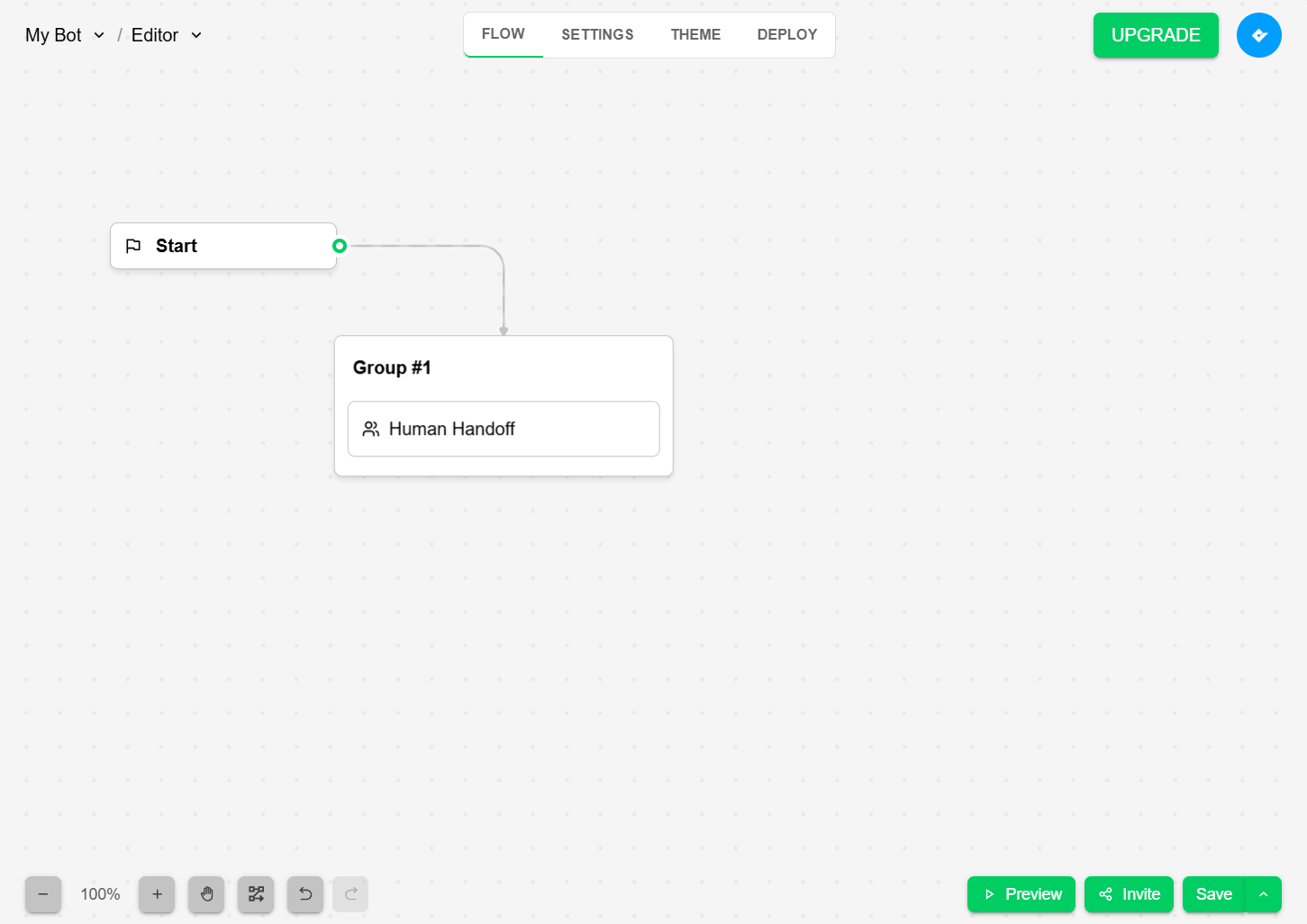 You don't need to configure any settings for the human handoff block or add any additional blocks,
the block itself has all the necessary to handle the conversation.
Currently the human handoff block does not have output points. This means it cannot direct the
flow to other blocks. May change in future updates.
We recommend placing the human handoff block at the end of your flow, after all other blocks have
been executed. This ensures that the user has completed their interaction with the bot before being
transferred to a human agent.
Once you have added the human handoff block to your flow, you can start using it by speaking with
your bot in viewer or via whatsapp if you have it deployed.
Preview mode does not work here because you will use the inbox to take over the conversation.
When the bot reaches the human handoff block, the customer will see a message that this conversation
is being transferred to a human agent.
You don't need to configure any settings for the human handoff block or add any additional blocks,
the block itself has all the necessary to handle the conversation.
Currently the human handoff block does not have output points. This means it cannot direct the
flow to other blocks. May change in future updates.
We recommend placing the human handoff block at the end of your flow, after all other blocks have
been executed. This ensures that the user has completed their interaction with the bot before being
transferred to a human agent.
Once you have added the human handoff block to your flow, you can start using it by speaking with
your bot in viewer or via whatsapp if you have it deployed.
Preview mode does not work here because you will use the inbox to take over the conversation.
When the bot reaches the human handoff block, the customer will see a message that this conversation
is being transferred to a human agent.
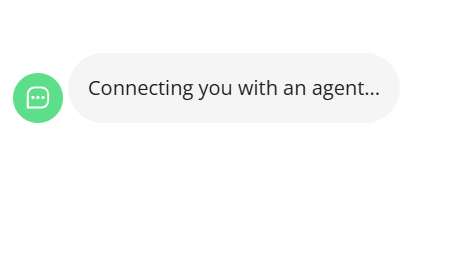 The bot will send a request to the inbox for a human agent to take over the conversation. Until an
agent takes over, the customer cannot continue interacting with the bot.
## Human Handoff in the inbox
In your inbox, Search for the conversation with the customer awaiting a human agent.
Inside the conversation, you can see a new button in the inbox that says **Take Over**. This button
will only appear when the bot flow has a human handoff block and the customer is waiting for a human
agent.
The bot will send a request to the inbox for a human agent to take over the conversation. Until an
agent takes over, the customer cannot continue interacting with the bot.
## Human Handoff in the inbox
In your inbox, Search for the conversation with the customer awaiting a human agent.
Inside the conversation, you can see a new button in the inbox that says **Take Over**. This button
will only appear when the bot flow has a human handoff block and the customer is waiting for a human
agent.
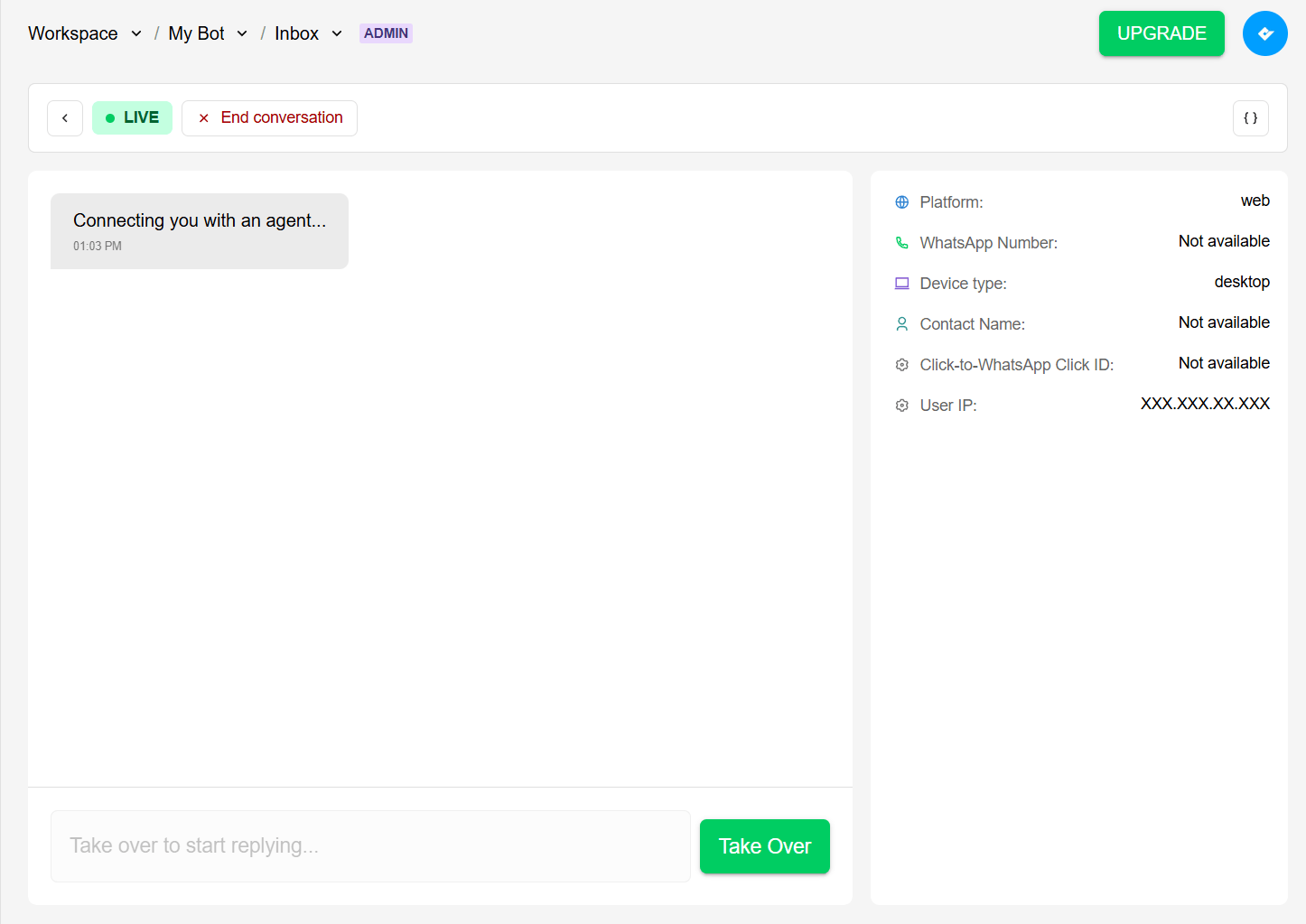 You have the option to accept or reject the conversation. If you accept, you can start chatting with
the customer. If you reject, by clicking in **End conversation**, the customer will be notified that
the conversation will be closed.
To start a conversation with the customer, Click on **Take Over** and confirm.
You have the option to accept or reject the conversation. If you accept, you can start chatting with
the customer. If you reject, by clicking in **End conversation**, the customer will be notified that
the conversation will be closed.
To start a conversation with the customer, Click on **Take Over** and confirm.
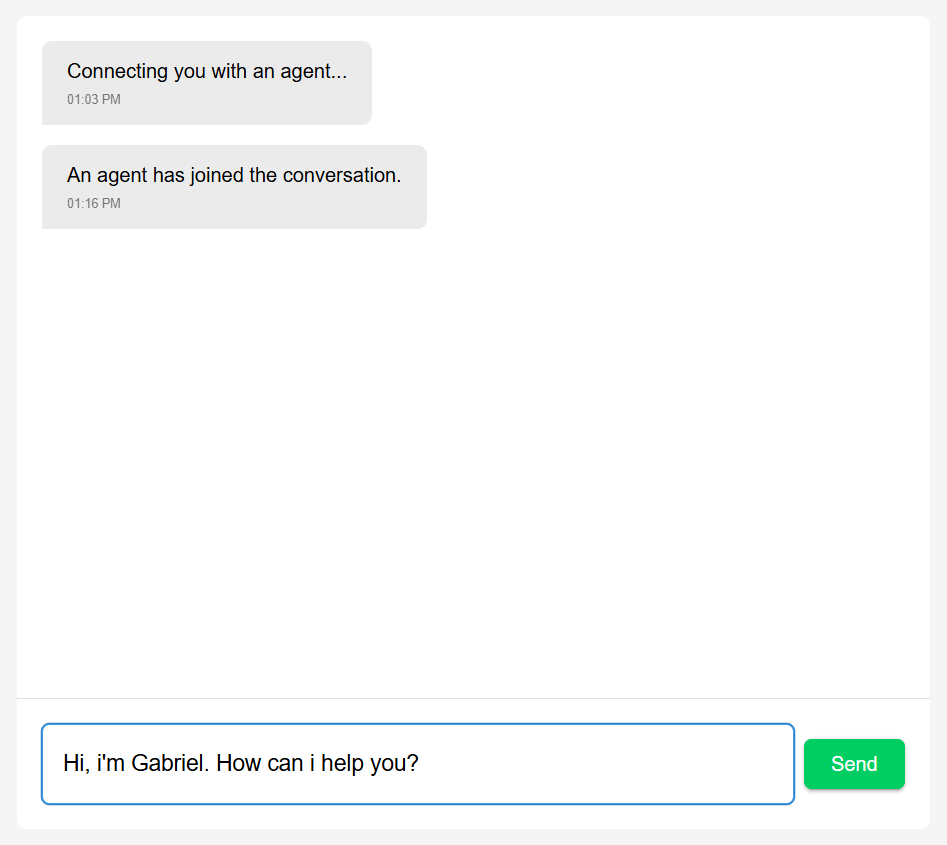
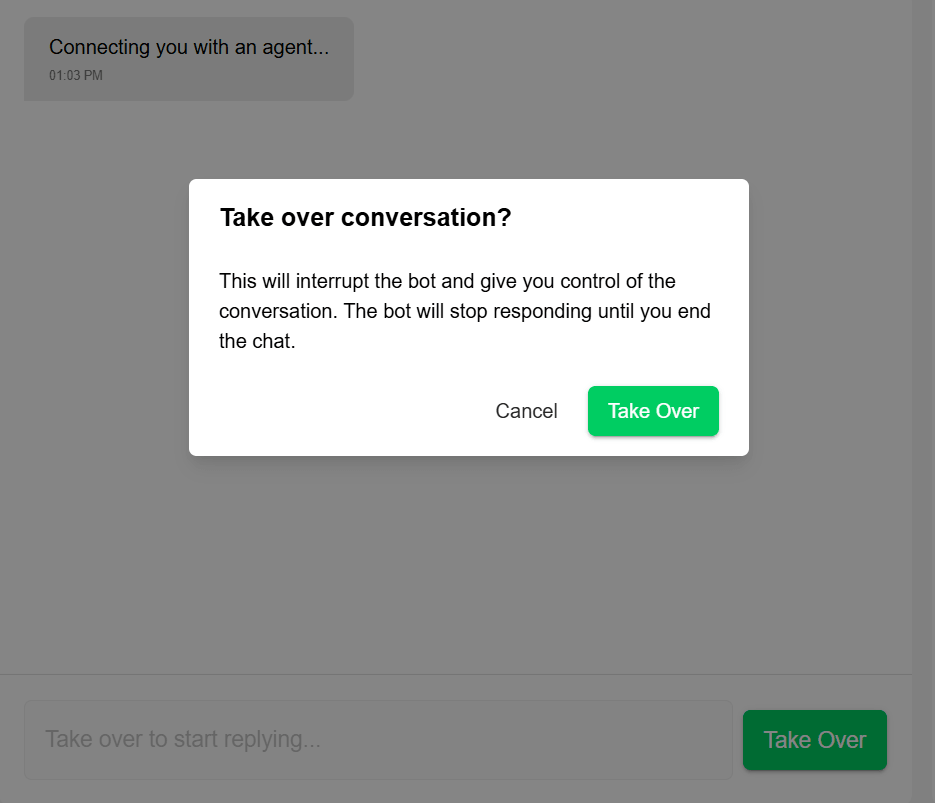 After taking over the conversation, the customer will be notified that an agent has joined and start
chatting. You can then send messages to the customer, and they will be able to reply.
After taking over the conversation, the customer will be notified that an agent has joined and start
chatting. You can then send messages to the customer, and they will be able to reply.
 ### Multiple agents support
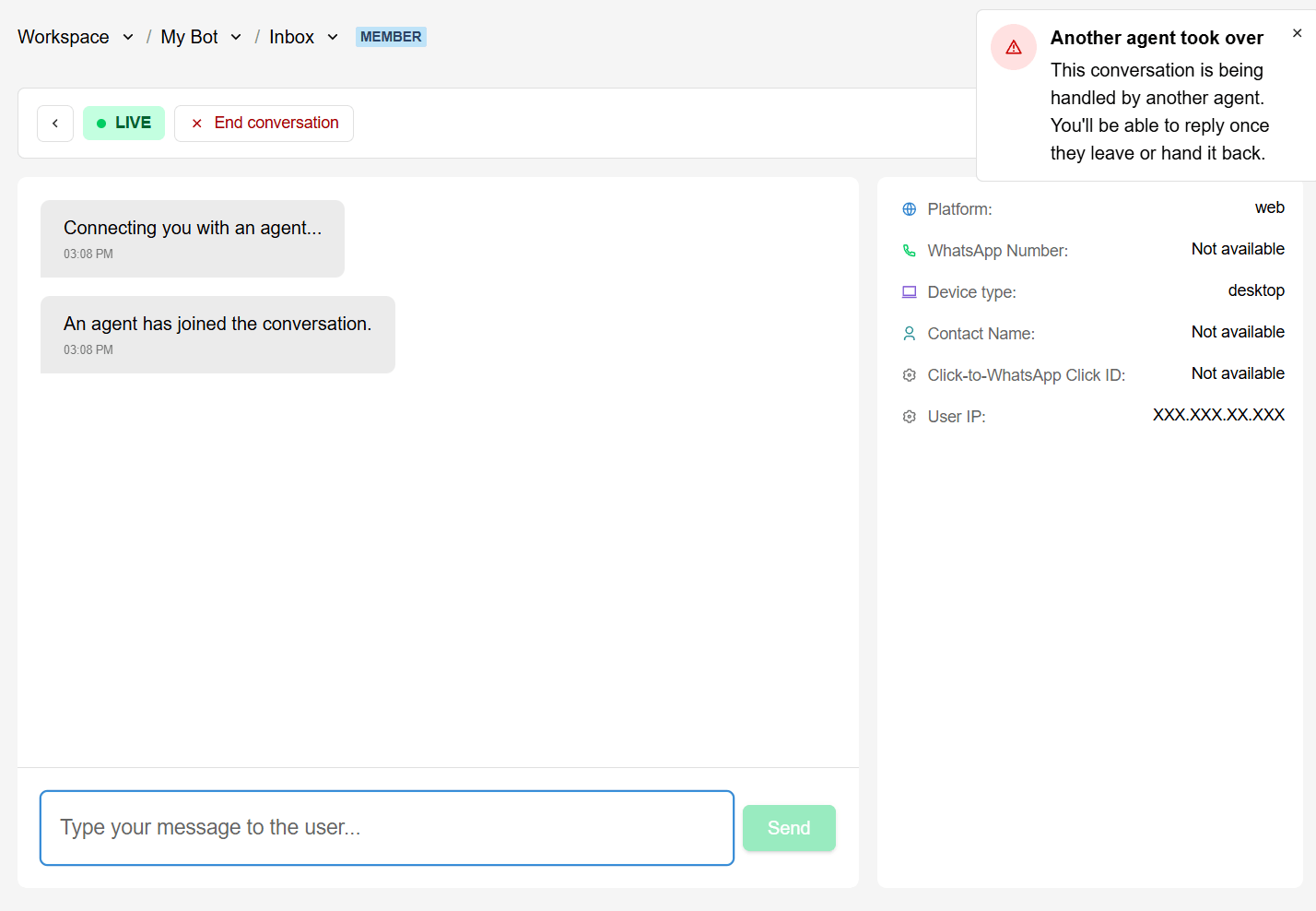
If multiple agents are available, the first agent to click **Take Over** will be assigned to the
conversation. Other agents will not be able to take over the same conversation while it is being
handled.
### Multiple agents support
If multiple agents are available, the first agent to click **Take Over** will be assigned to the
conversation. Other agents will not be able to take over the same conversation while it is being
handled.
 To have multiple agents, you need to invite other members to your workspace. To know more about
how to invite members, check the [workspace members section](/app/workspace/members).
To have multiple agents, you need to invite other members to your workspace. To know more about
how to invite members, check the [workspace members section](/app/workspace/members).